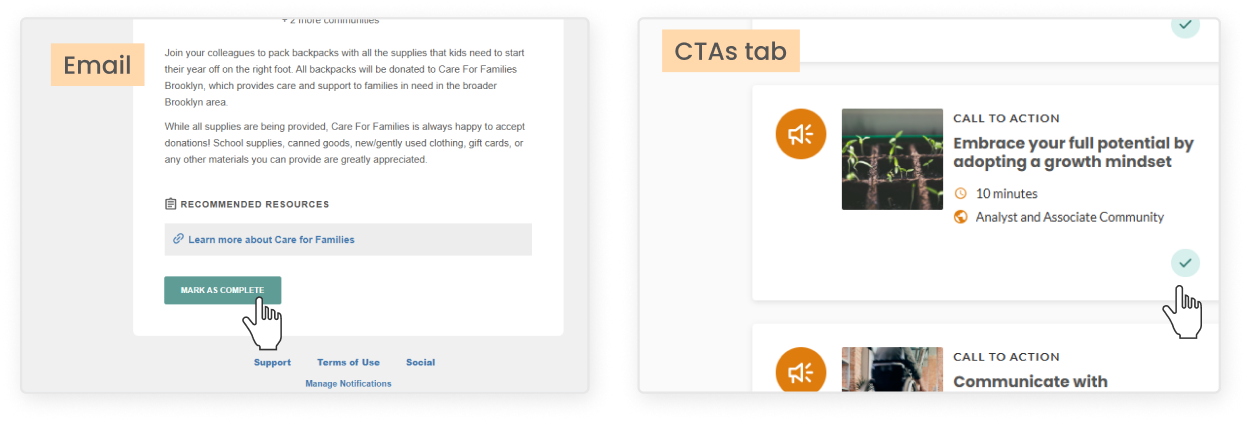
- If you are subscribed to the community that published the Call to Action, you may receive an email notification about the post. From that email, you can view the details and click the green Mark as complete button
- If you are logged into Mindr Connect, find the CTA you want to engage with
- If on the My Dashboard or Calls to Action tab, click the green checkmark button
- If on the specific CTA page, click the green Mark as complete button
- If you want to unmark a CTA as complete, click into the specific CTA page from either My Dashboard or the Calls to Action tab. Once on the CTA page, click the green Mark as Incomplete button
- From your dashboard, head to the Calls to Action tab and use the filters on the left side:
- Toggle between “All” and “Mine” – Switching to “Mine” will show CTAs published by communities you’re subscribed to
- Filter by Groups – Select one or more communities to only see CTAs from those specific groups
- Filter by Time Commitment – Choose how much time you’re able to commit, such as 30 minutes or less, 1 hour or less, etc
- Filter by Locations – Pick one or more locations to view CTAs relevant to specific geographic areas (note that many CTAs are intentionally global)

- Navigate to the Calls to Action tab on the top menu of your dashboard
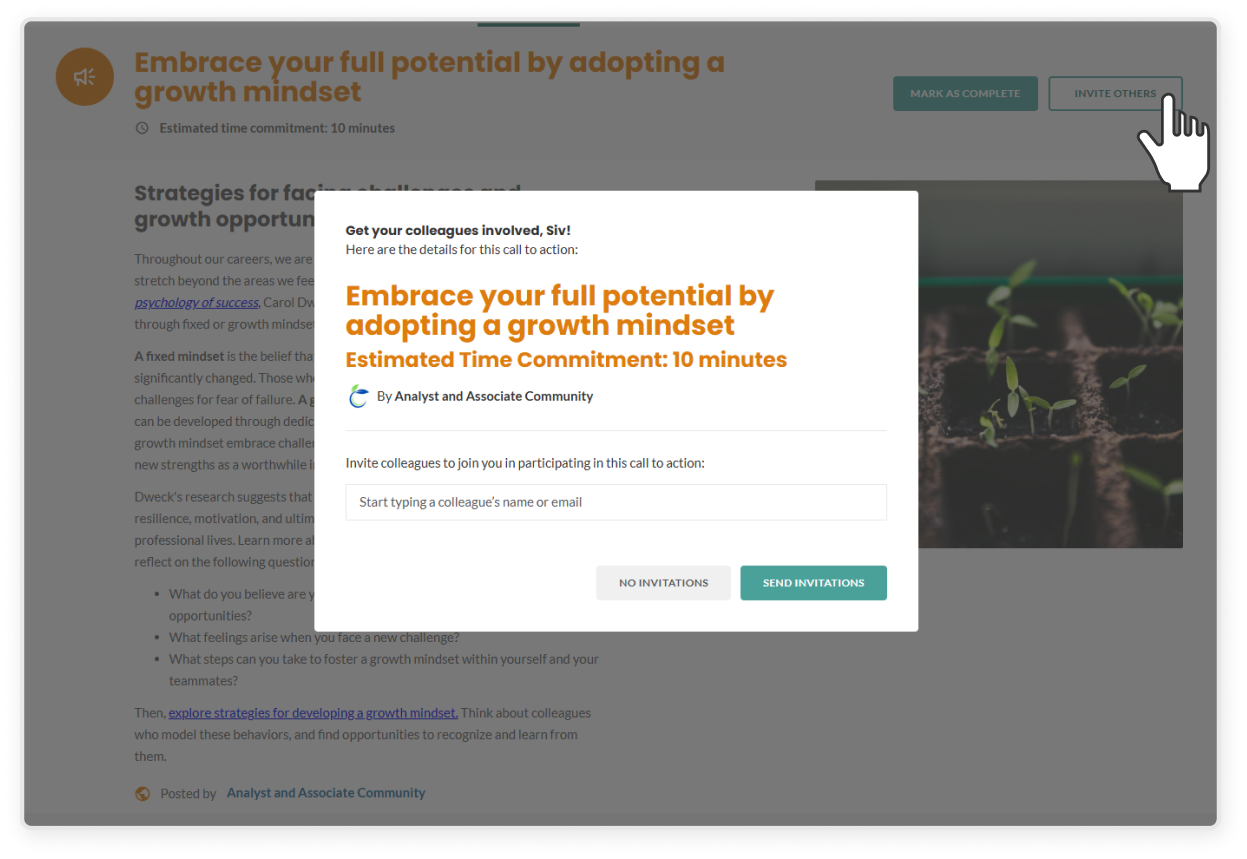
- Select the CTA you'd like to invite colleagues to engage with
- In the top right corner of the banner, click the transparent Invite Others button
- In the text box, begin typing your colleague's name or email
- Select your colleague's auto-populated profile
- Add as many colleagues as you would like
- Click the green Send Invitations button, and an email will be sent to their inbox
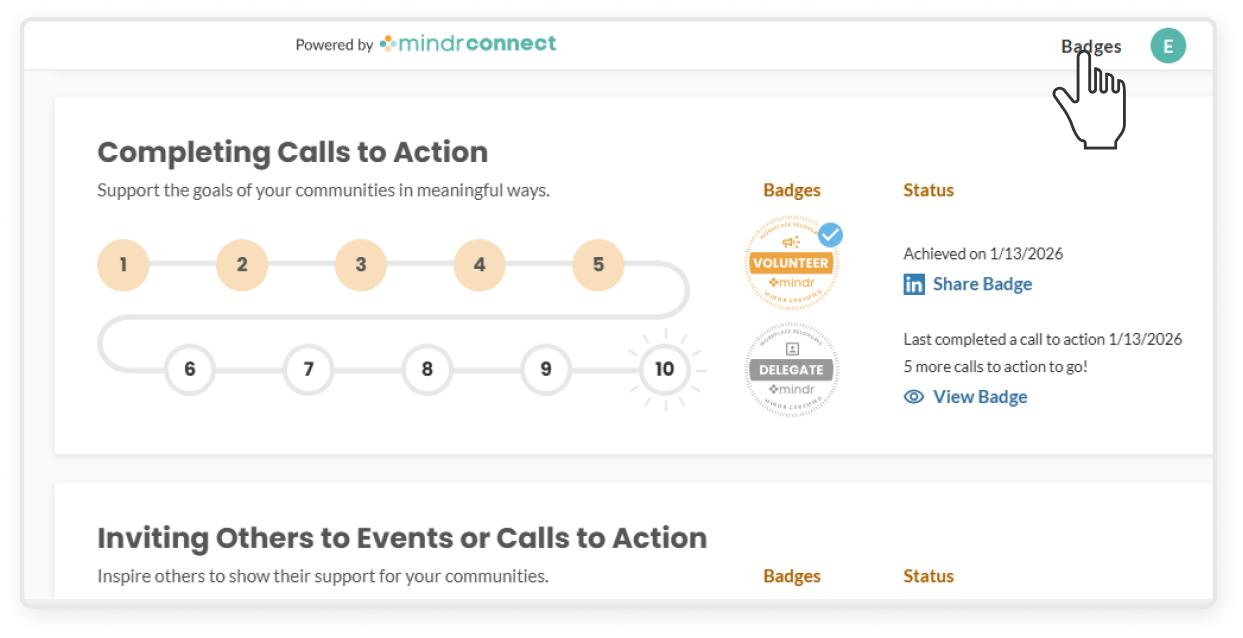
- You can earn two badges by completing CTAs:
- Complete 5 CTAs to earn the “Volunteer” badge
- Complete 10 or more CTAs to earn the “Delegate” badge
- In the top navigation bar, click Badges to view all available badges
- To see each individual badge in a larger view, click the relevant View Badge button
- Once a badge has been earned, you can share your achievement on LinkedIn by clicking Share Badge
- You can learn more about each badge here