Track engagement, events, CTAs, and badges for your community
Understand community report types
Click Leadership Dashboard in the top right corner
Select the community
In the left sidebar under Community Management, click Reports
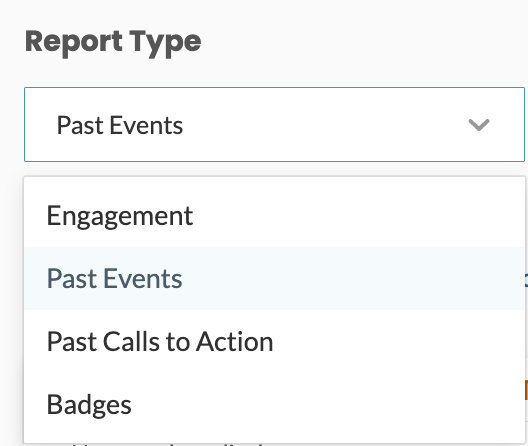
In the Report Type drop-down, select the type of report you’d like to view
Engagement provides a list of all community subscribers and their activity (number of events attended, calls to action completed, AS communities, AR events, etc.)
Auto-subscribed Communities (AS Communities) are those that the organization has subscribed all users to automatically.
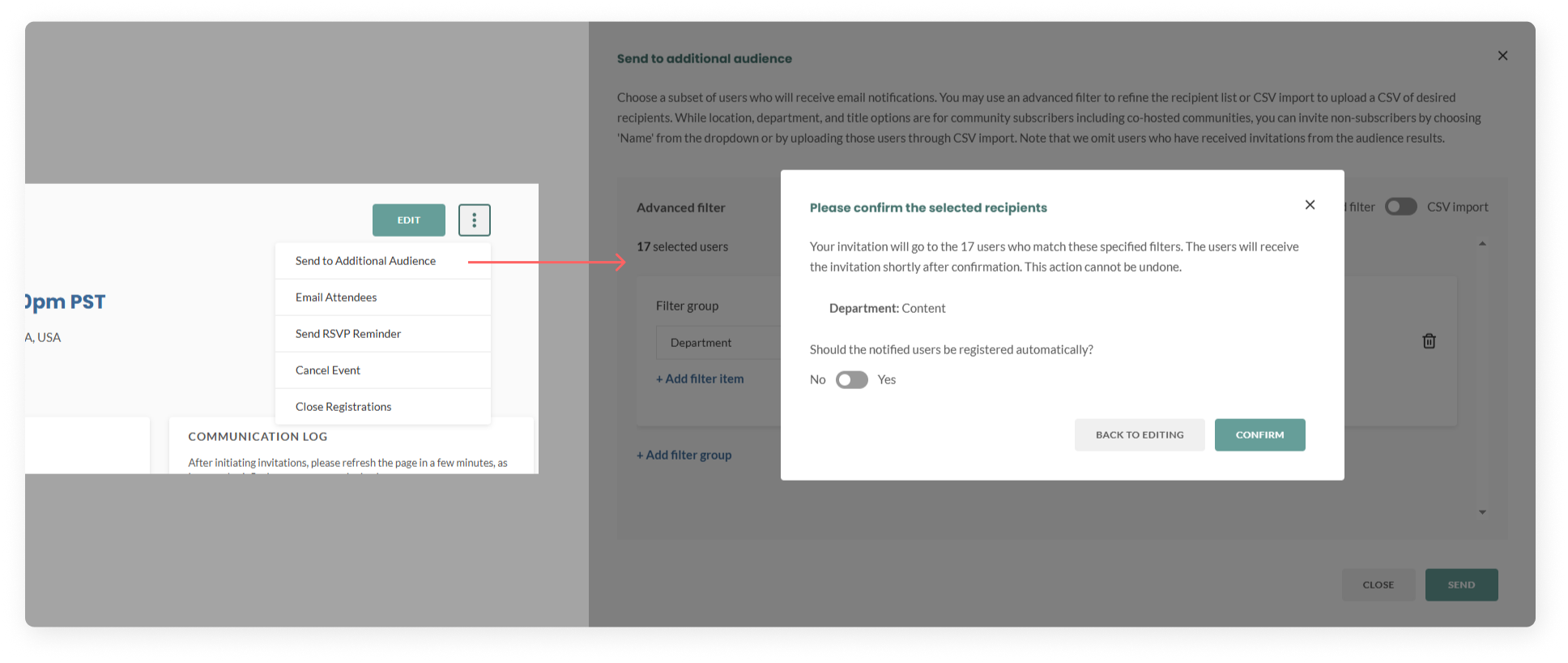
Auto-registered Events (AR Events) are events that community leaders have automatically added to subscribers’ calendars, meaning that users do not have to take action to register themselves. This can be turned on in the event creation/edit page under Audience, or from the three-dot kebab menu when using Send to Additional Audience.
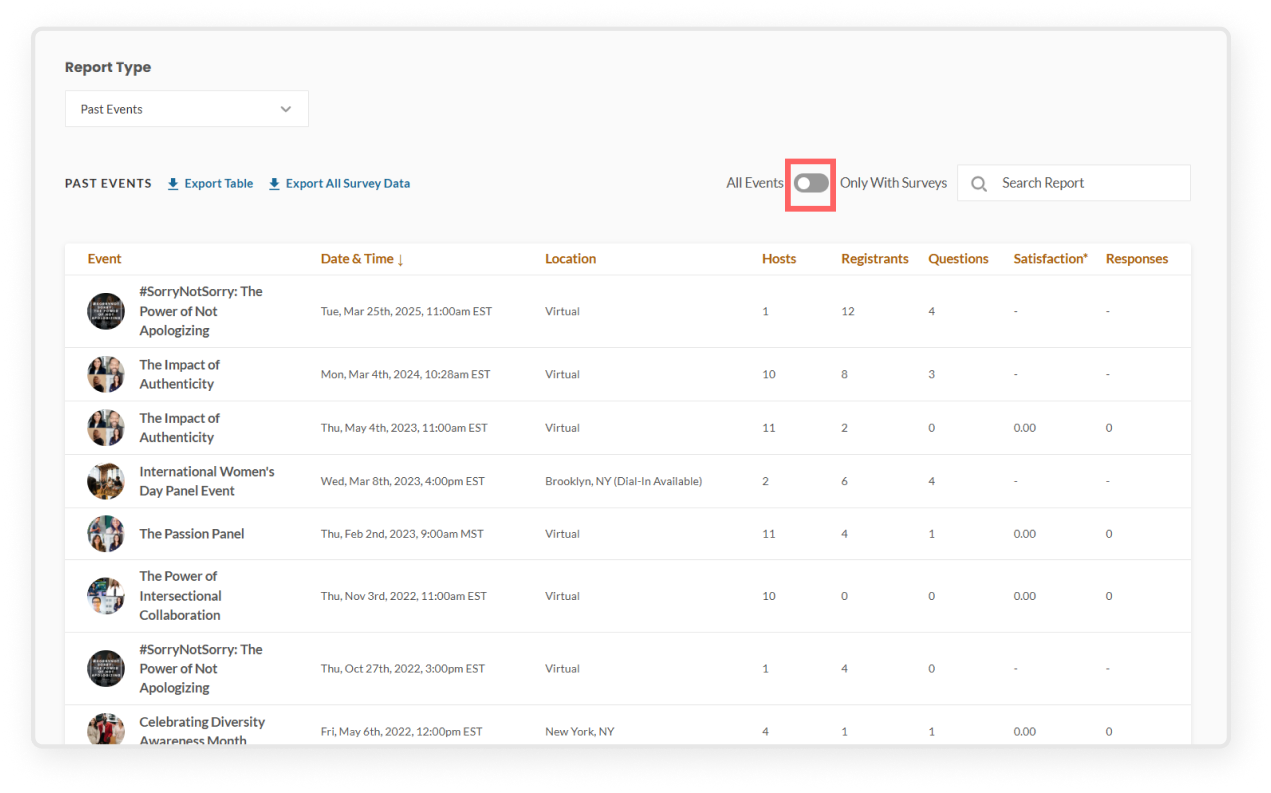
Past events provides a list of past events hosted by the community, including number of registrants, pre-submitted questions, and survey responses. This report can be filtered to include all past events, or those just with survey responses.
Past calls to action provides a list of all previously published CTAs, including the number of users who have marked the CTA as “completed.”
Badges provides a list of all community subscribers and the engagement badges they have earned. You can use this information to identify highly engaged changemakers in your community so that you can tap into their passion and contributions to building a culture of belonging at your organization.
View event reports within a community
Click Leadership Dashboard in the top right corner
Select the community
In the left sidebar under Community Management, click Reports
Select the Past Events report type
You can click into individual events to see specific feedback, including satisfaction rates, comments from attendees, and questions submitted in advance.
NOTE: For data security purposes, reports by default cannot be exported. If your organization has signed additional data privacy waivers, the export feature may be enabled. Please reach out to your main Organization Admin or the Mindr team with any questions.
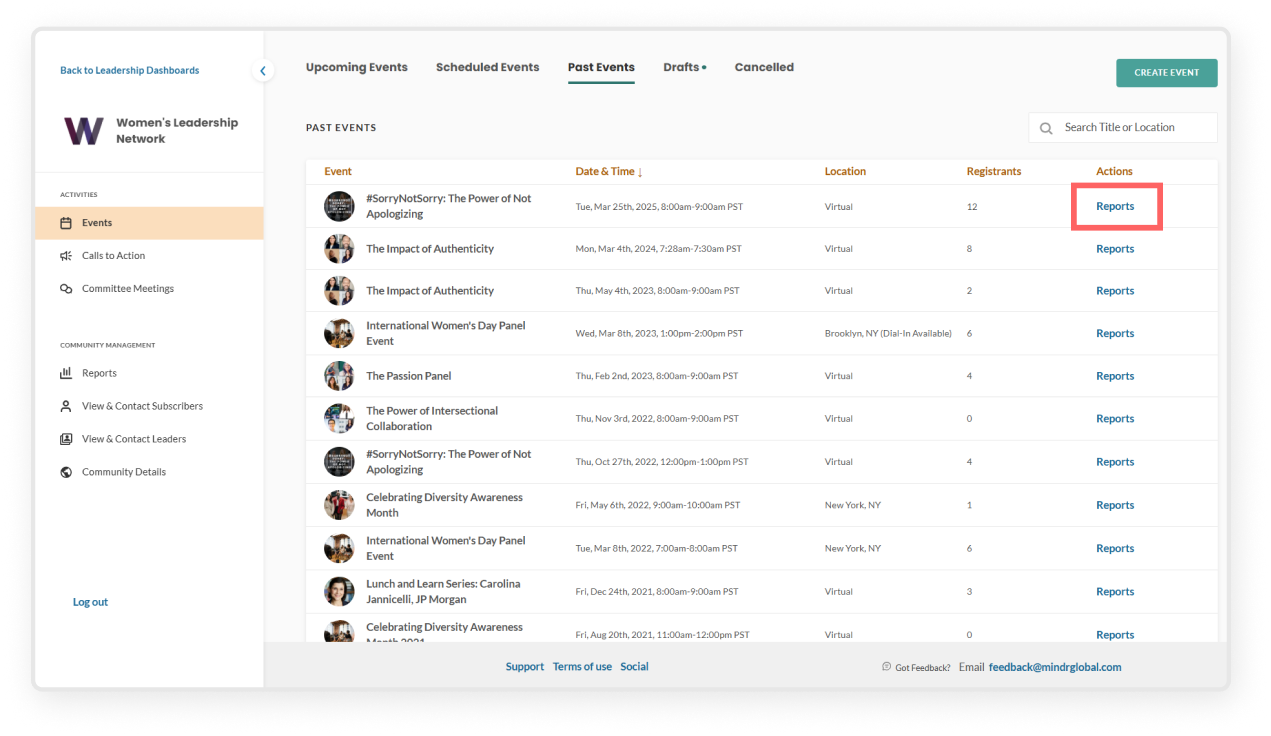
You can also view the same event report from the Events section. In the left sidebar, go to Events, select Past Events, then click Reports for the event you want to view.
By default, the Past Events report only shows events with surveys. Use the toggle to show all past events, including those without surveys, to access the rest of the event reports.