Set up a new community, review it, and publish it to your organization
How to create a community
In the top right corner, click your Settings
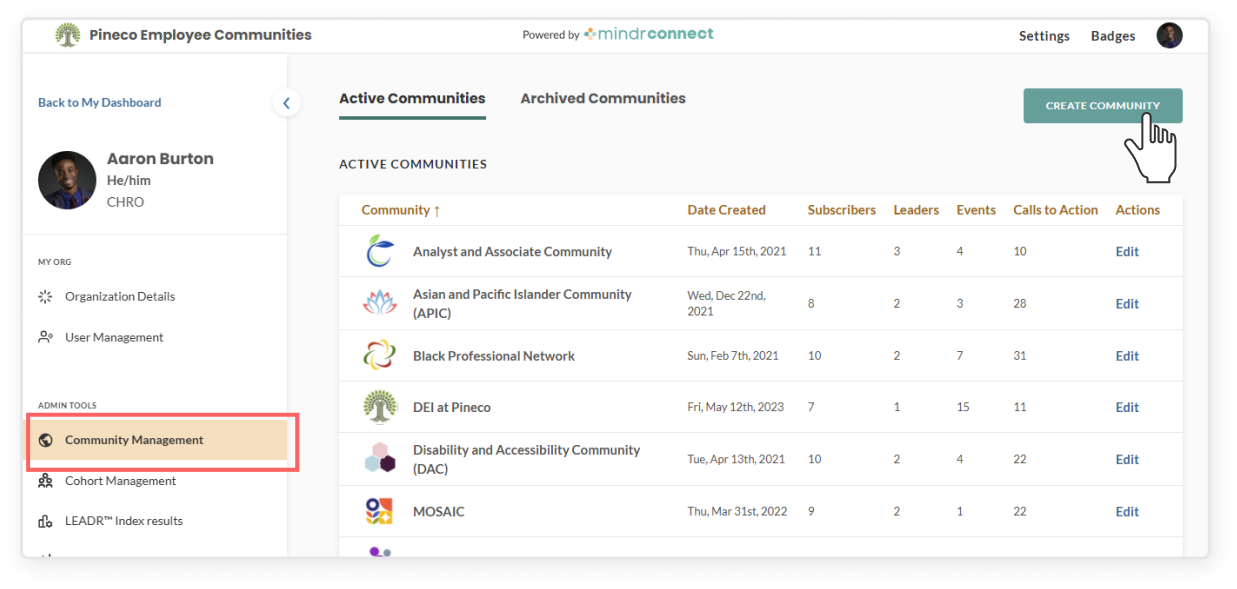
On the left sidebar, under Admin Tools click the Community Management
Click the green Create Community button
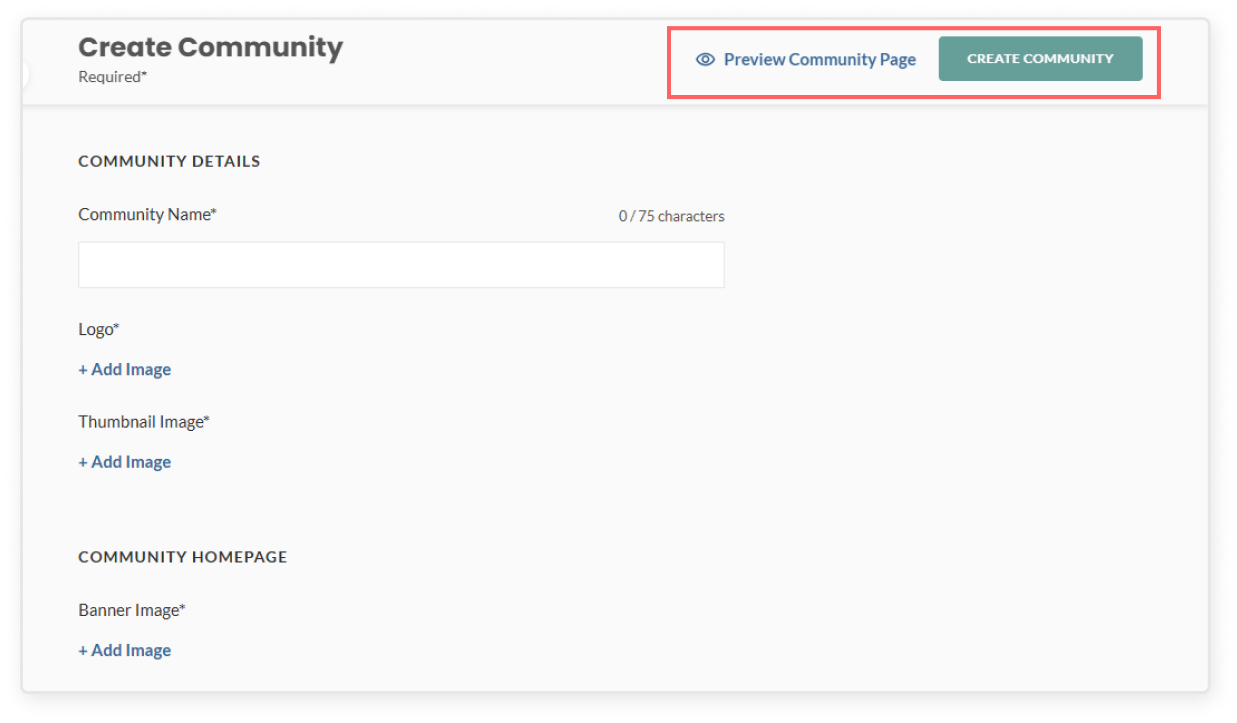
Fill out required fields and upload images:
Add the community name and an engaging subtitle
Write a short mission statement, including any important details you’d like included on the community homepage, you can use rich text formatting for this section, including adding headings and links.
Upload a logo for this specific community
Add a thumbnail image that will appear on the main Mindr Connect dashboard
Upload a banner image that will appear at the top of the community detail page
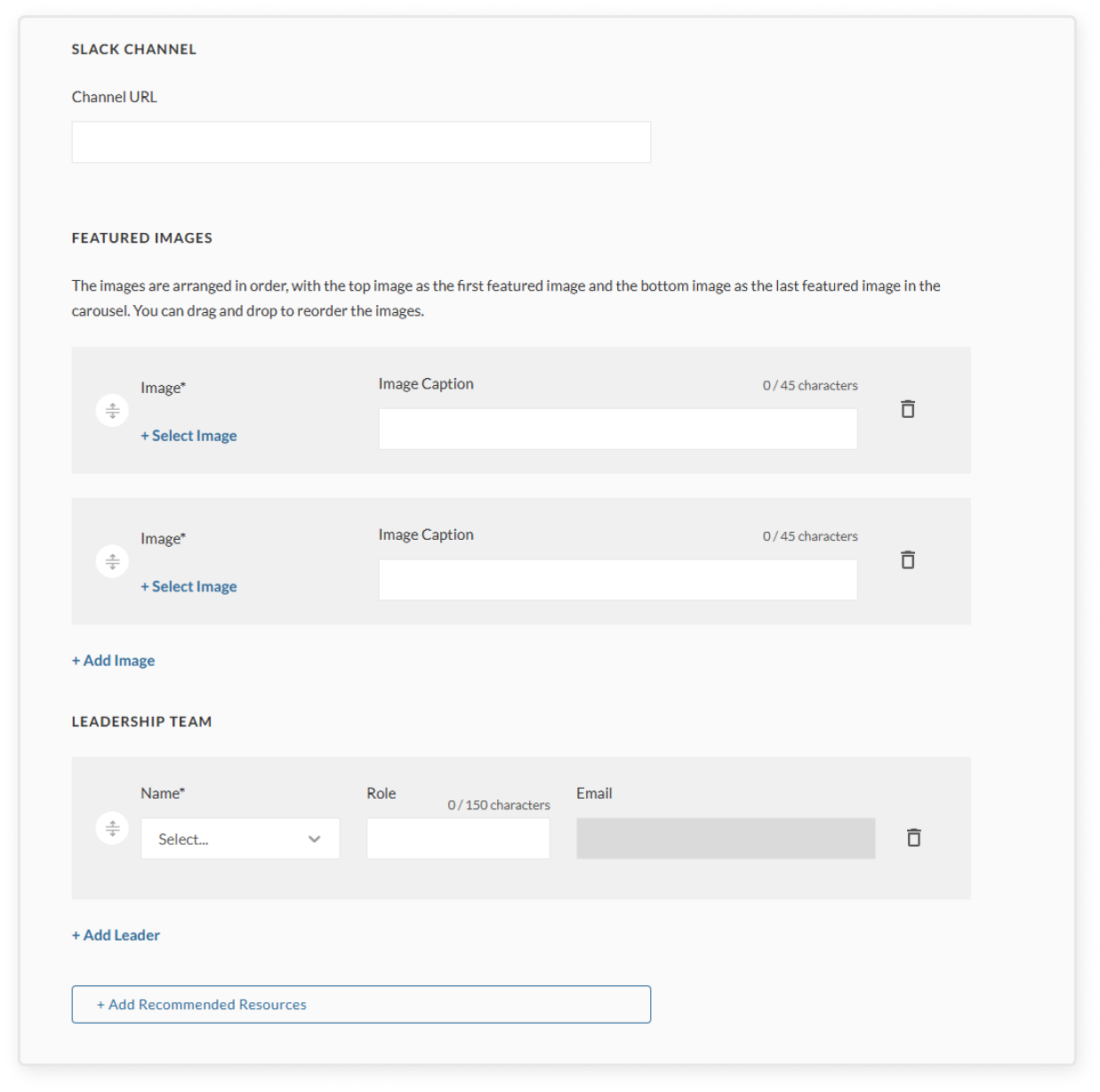
Upload featured images to give the page more visual context (this can be past events, marketing materials, or stock images). You can drag and drop to reorder the images using the icon at the front.
You must upload atleast twoimages in order to save your progress and proceed with creating a community.
Assign a leadership team by adding one or more leaders who will help manage the community. You can drag and drop to reorder the leaders using the icon at the front.
If leaders haven’t been selected yet, you can add yourself or another point of contact in the meantime
By adding someone to the leadership team, they become a Community Leader. Community Leaders can:
Edit the community details
Create events and CTAs, and publish them to community subscribers
Create committee meetings with other leaders
View community reports that show subscriber engagement and activity
Add optional but helpful details:
Add a communication channel if there are other places where your community connects, such as Slack or Microsoft Teams
+ Add recommended resources that users can view or download from your Community’s page. You can drag and drop to reorder the resources using the icon at the front.
If you want everyone in your organization to be added automatically, toggle on “Should all users be automatically subscribed to this community?”
Review and publish a community
Click Preview page to view how the community page will appear to users
Double-check all details, including leadership and resources, before publishing
Click Create Community to publish. This will make the community visible and accessible to all users on Mindr Connect.
Make sure the new community appears under the Active Communities tab
Edit an existing community
On the left sidebar, under Admin Tools click the Community Management
Go to the Active Communities tab
Click Edit on a community within the table
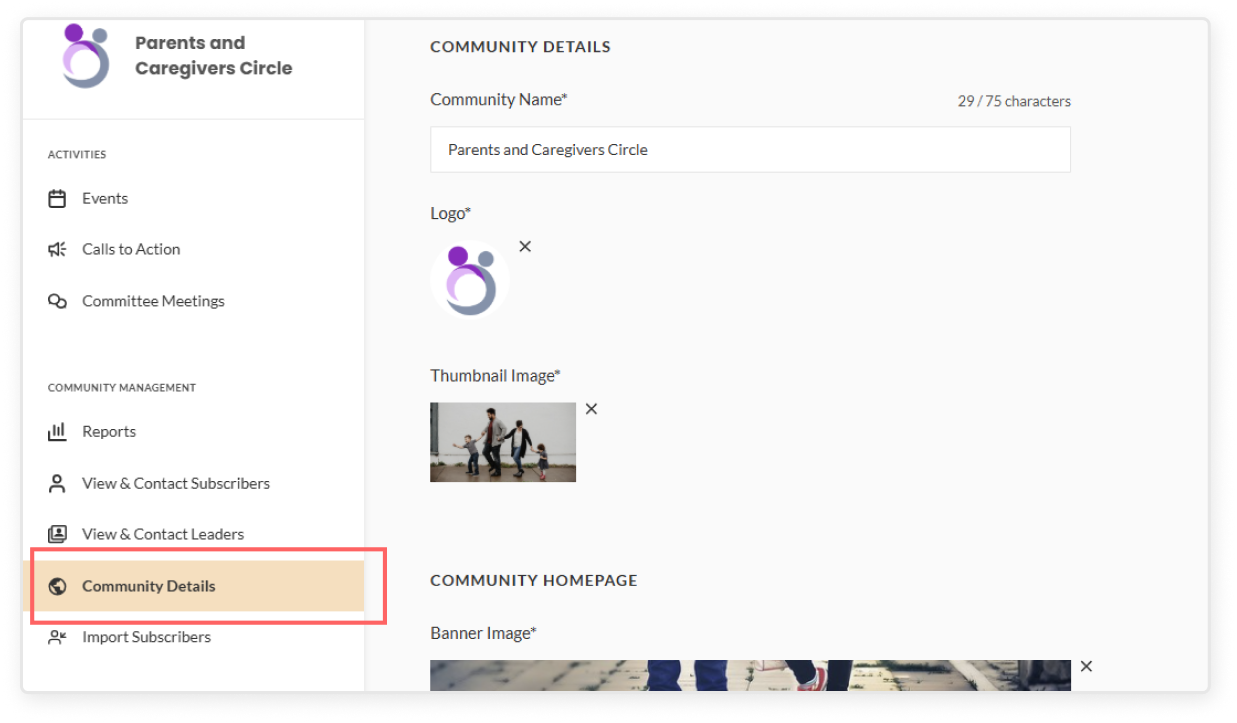
If you're already in a specific community, you can click Community Details in the left sidebar under Community Management
Make your changes and click Save to update the page
Archive a community
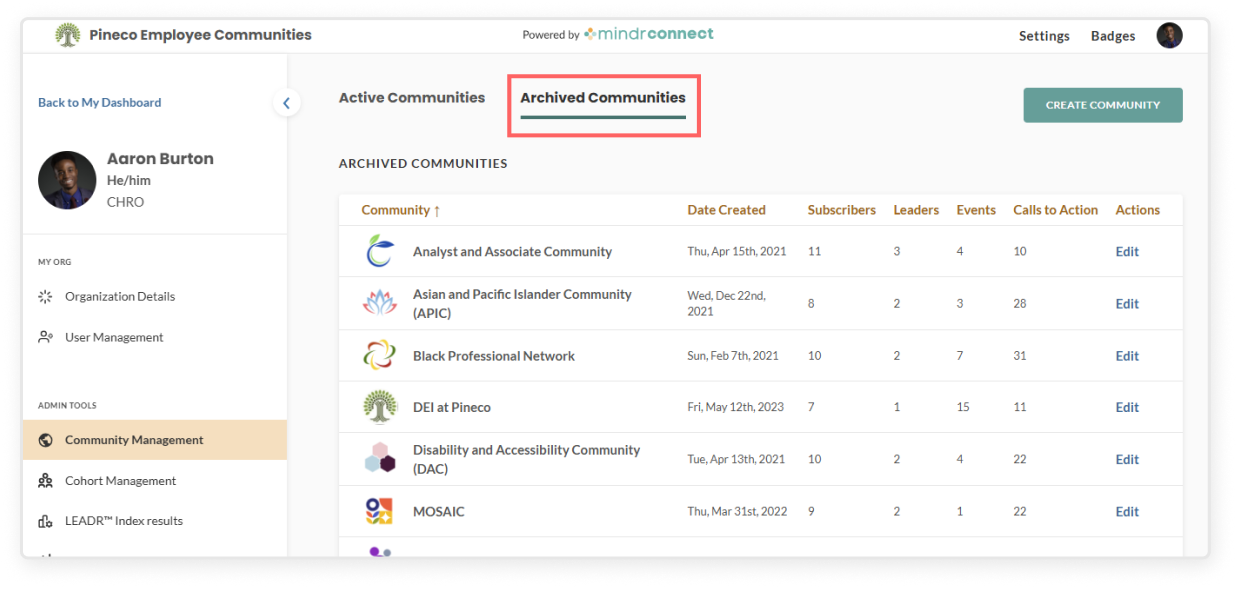
You can remove a community by archiving it. Leaders and subscribers will no longer be able to see this community. The only users who will have access to view the archived community are Org Admins via the Archived Communities tab.
On the left sidebar, under Admin Tools click the Community Management
Go to the Active Communities tab
Click Edit on a community in the table, or if you're already in a community managing events, CTAs, or others, you can click Community Details in the left sidebar under Community Management
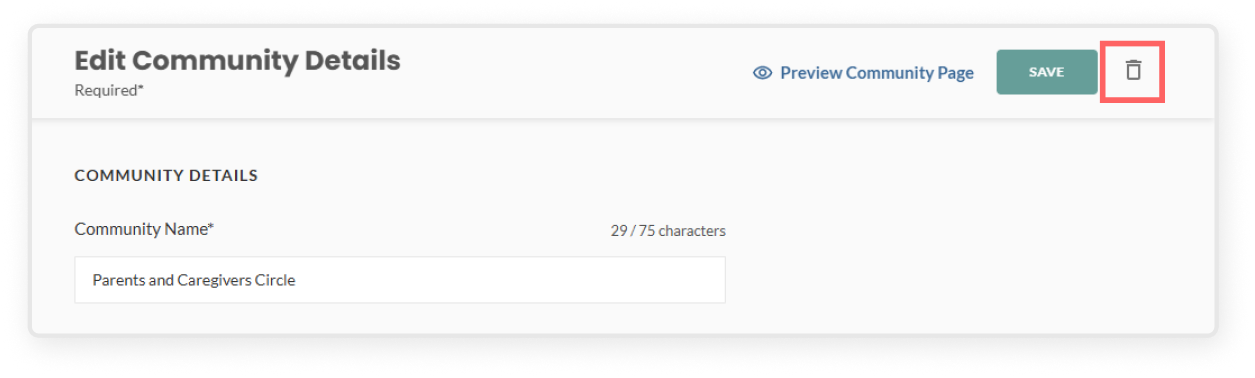
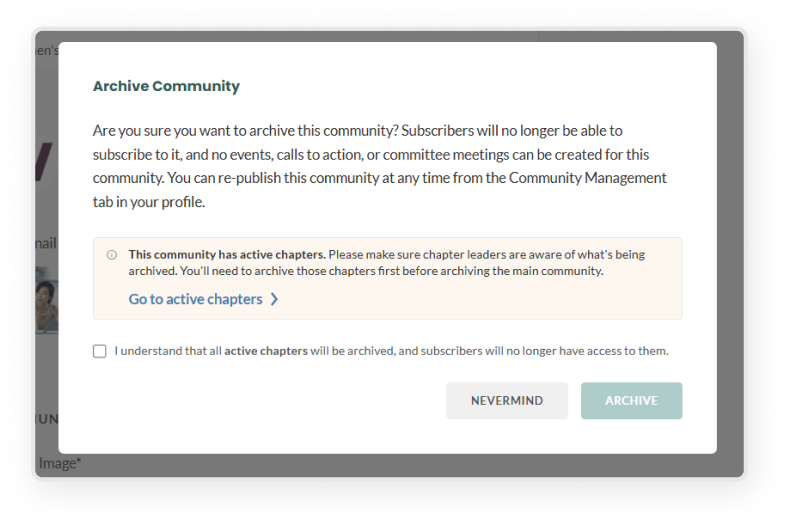
Click the trash can icon to the right of the green Save button. Read the message in the pop-up modal confirming your selection, then click the green Archive button
Once archived, data such as the community details, past events, CTAs, and reports will be accessible in the Archived Communities tab
Create a chapter
Click Create Community
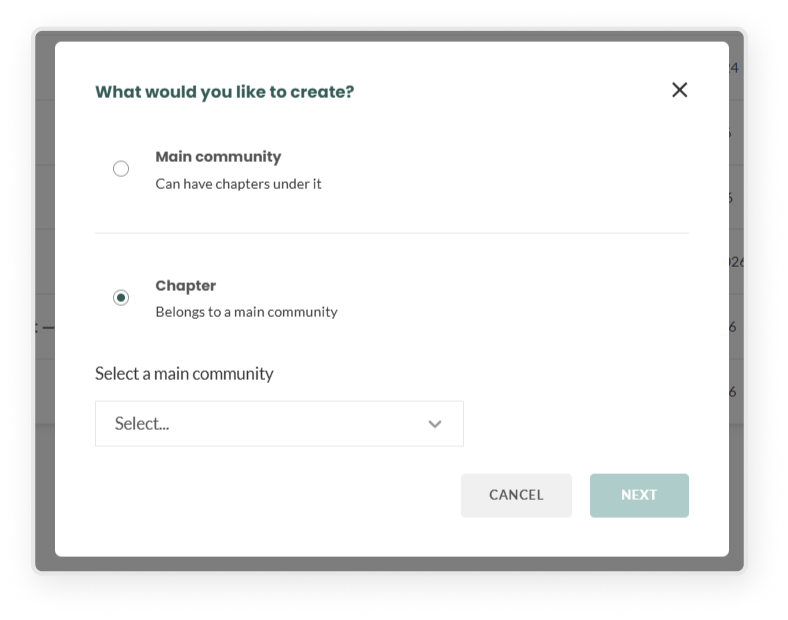
Choose Chapter
Select a main community from the dropdown. This is required.
Fill in the chapter details:
Chapter name
Subtitle
Mission statement
Logo and thumbnail
Banner and images
Leadership team
Resources
On the right side panel, you can automatically register subscribers from the main community to the chapter – either add all subscribers or select a specific subset.
Click Create Chapter to create the chapter
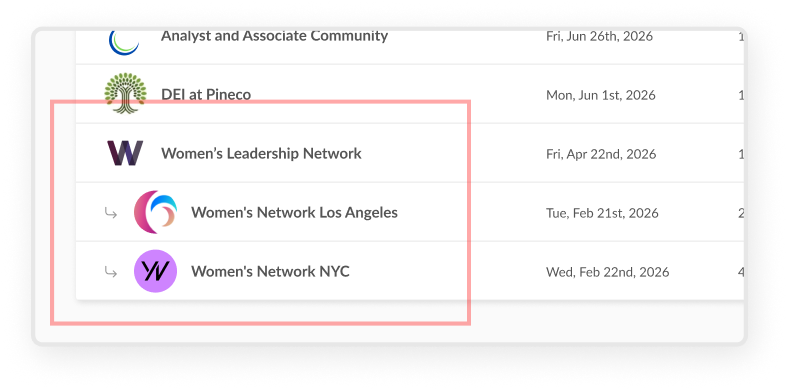
Once a chapter is created, it appears directly under its main community with a downward arrow indicating the relationship.
Auto-subscribe to chapter
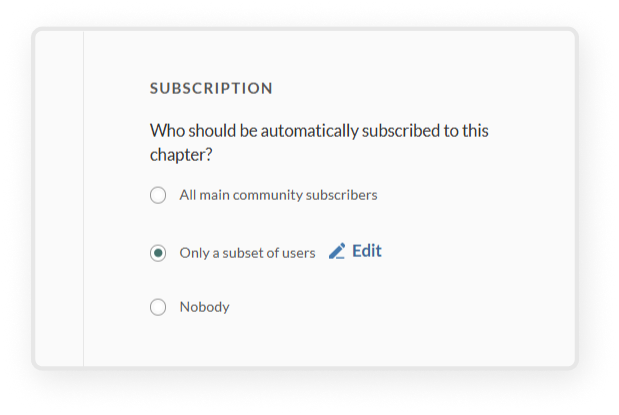
When creating or editing a chapter, you can set an auto-subscription audience from the right side panel. Choose:
All main community subscribers – everyone subscribed to the main community will be automatically subscribed to the chapter
Only a subset of users – opens a pop-up modal where you can filter by location, department, or title. Only subscribers who match the selected filters will be auto-subscribed.
Note: Filters can be updated anytime. Changes only take effect when the chapter is created or saved.
Nobody – no one will be auto-subscribed. Users can join the chapter on their own.
Archive and restore a chapter
To archive a chapter:
Click the trash can icon in the top right corner of the chapter page
The chapter will move to Archived Communities
Note: Archiving a main community will also archive all of its chapters.
To restore a chapter:
Go to Archived Communities and find the chapter you want to restore
Click Publish Now to restore it
Note: To restore a chapter, the main community must be active first. If the original main community is still archived, you'll need to select a new main community before the chapter can be restored. A chapter can only exist if it is tied to an active main community.
Microsoft Teams integration
Microsoft Teams integration is a feature that can be turned on if you want your community’s updates to sync with a Microsoft Teams channel. Once integrated, new events and CTAs will automatically post in your Teams channel. To get started, you can:
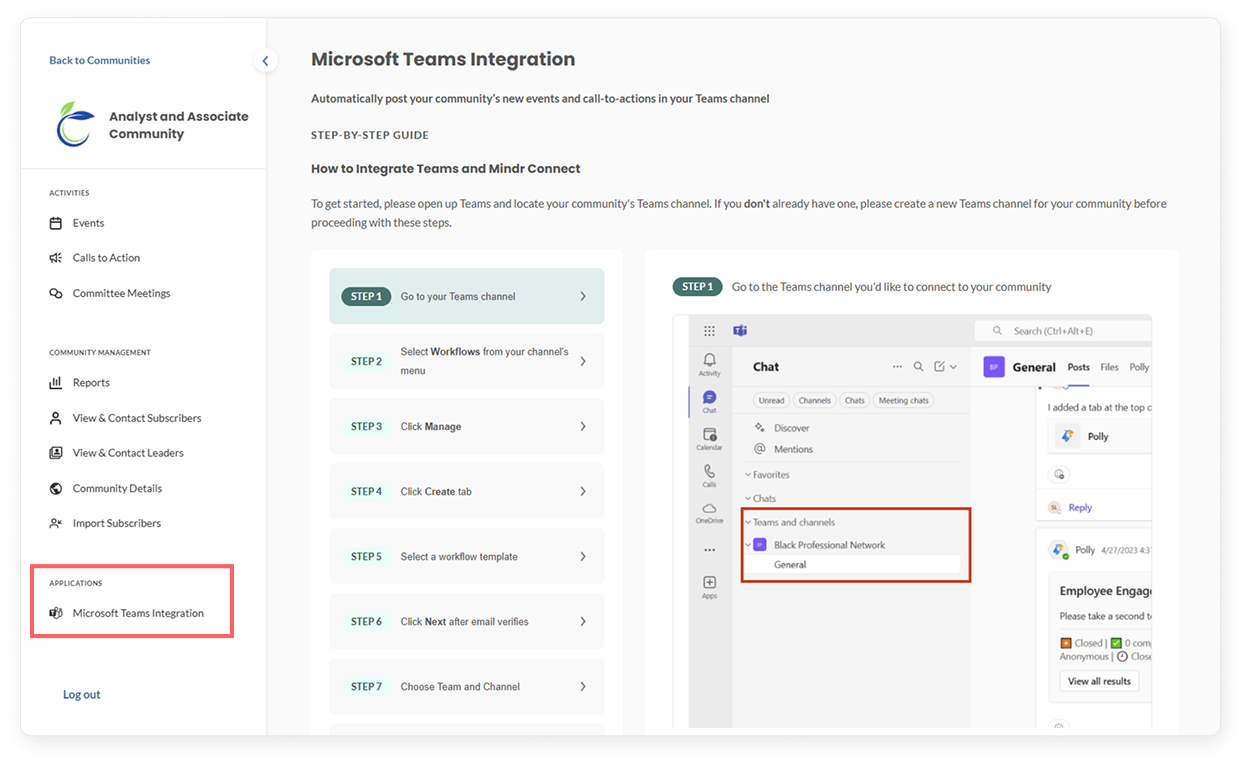
Go to a community and locate the Microsoft Teams Integration tab in the left sidebar
Follow the step-by-step guide to set up a new connection
Manage existing connections in the Microsoft Teams Integration tab
Remove a connection at any time to disconnect it from both the Teams channel and your community. Note: The Webhook URL cannot be edited once created.