Organization Admins

Updating organization details

Edit your org profile, branding, key contact, and email notification settings

Add your organization basic details

  • In the top right corner, click Settings
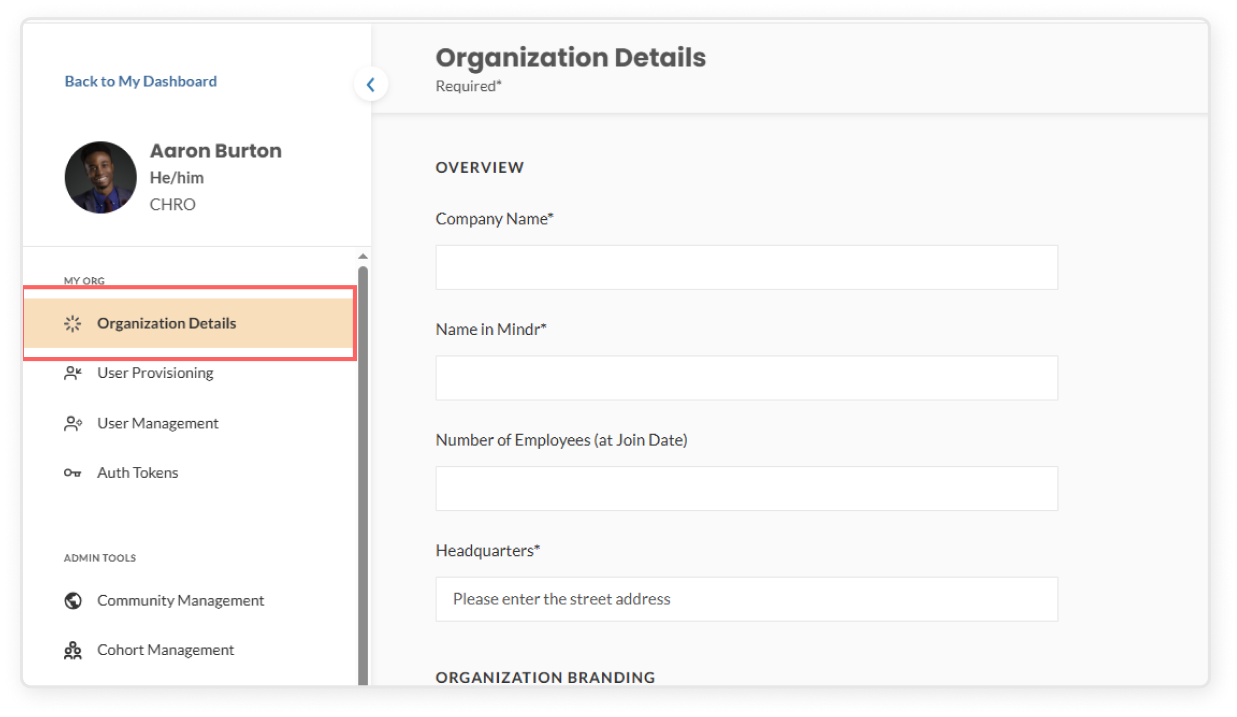
  • On the left sidebar, under My Org click Organization Details 
  • Here you can edit all of the details for your organization, including:
    • Company name
    • Name in Mindr
      • Company Name is your official name, while Name in Mindr is the display name shown throughout the platform.
    • Number of employees (at Join Date)
    • Headquarters

Edit your organization's branding

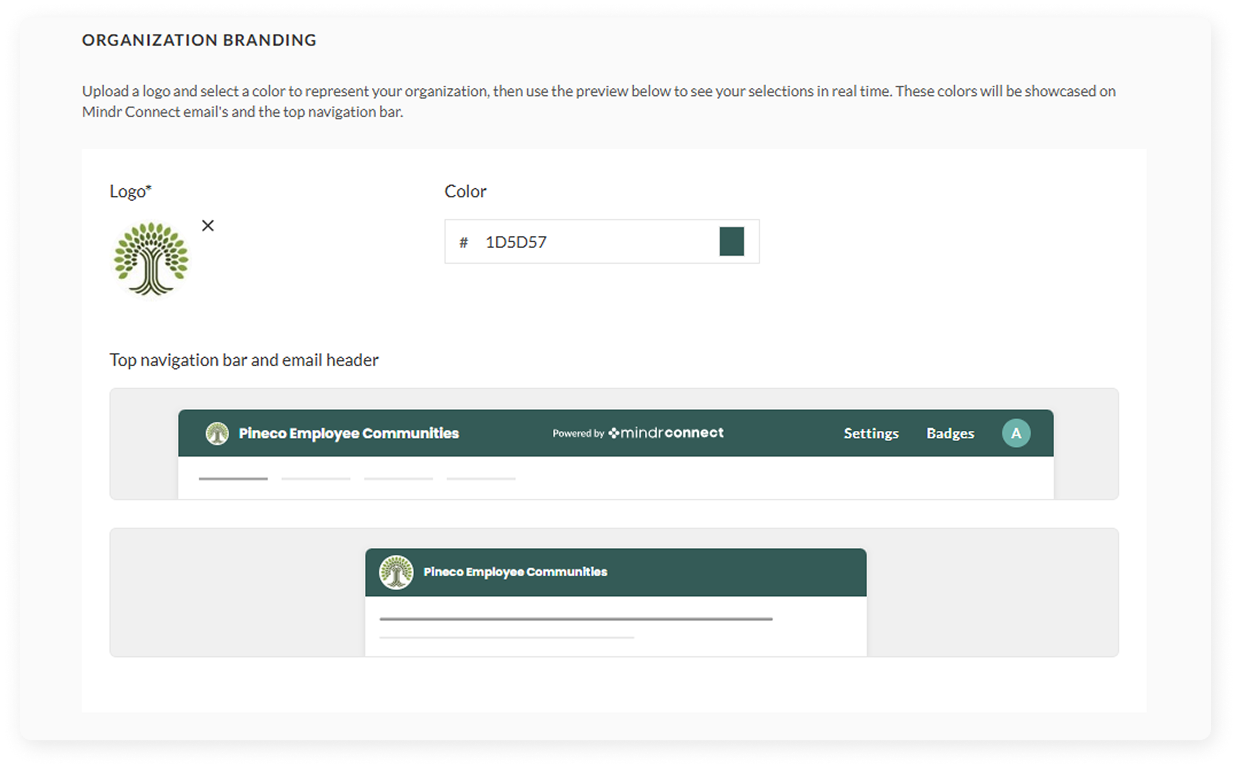
  • If this feature has been enabled for your organization, you can customize Mindr Connect with your organization’s branding
    • Upload a logo and select a brand color, then use the preview box below to see your selections in real time
  • Once saved, this branding will be visible on the navigation bar and email notifications for all users at your organization

Turn on the company-wide digest emails

  • The company-wide digest email is sent automatically to all users, and helps to inform and engage employees who have not yet subscribed to any communities. This email will spotlight upcoming events, current Calls to Action, and ways to get involved across all communities.
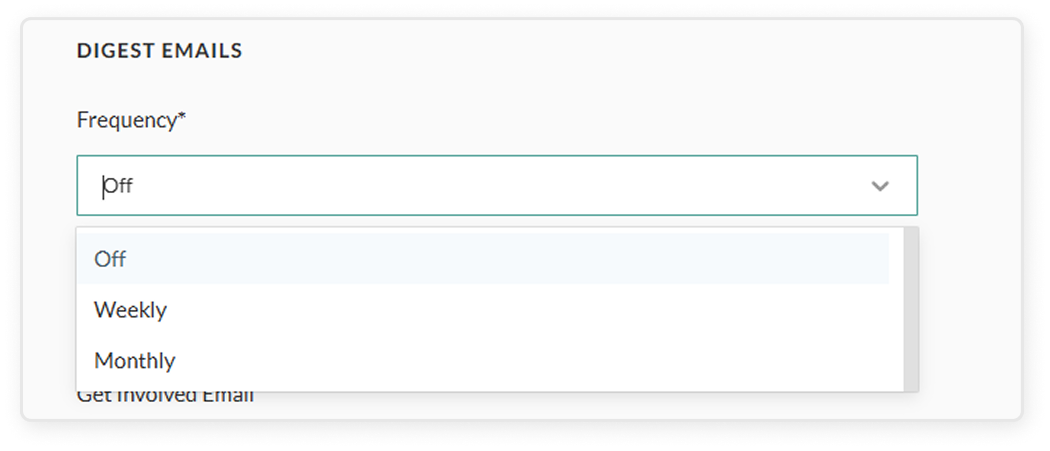
  • Select a frequency from the dropdown (Off, Monthly, or Weekly)
  • Designate a recurring date and time for the emails to be delivered (for example, every first Tuesday of the month)
  • Click the green Save button in the top right corner

“Get involved” email: Your org email

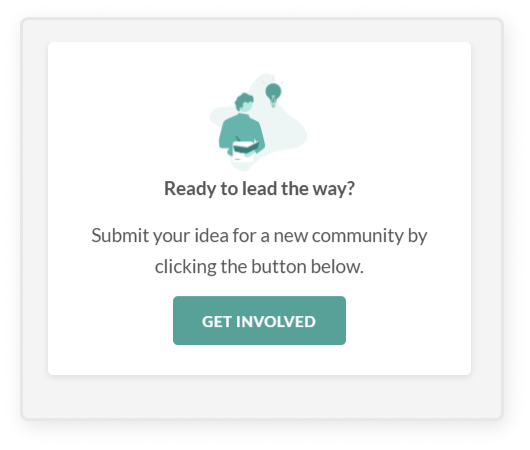
  • This tile will only appear if your organization has three or less communities: 
  • If relevant, add the contact information for an Organization Admin who can respond to users’ questions and ideas about culture initiatives. When users click “Get Involved” they will be prompted to send an email to this address.

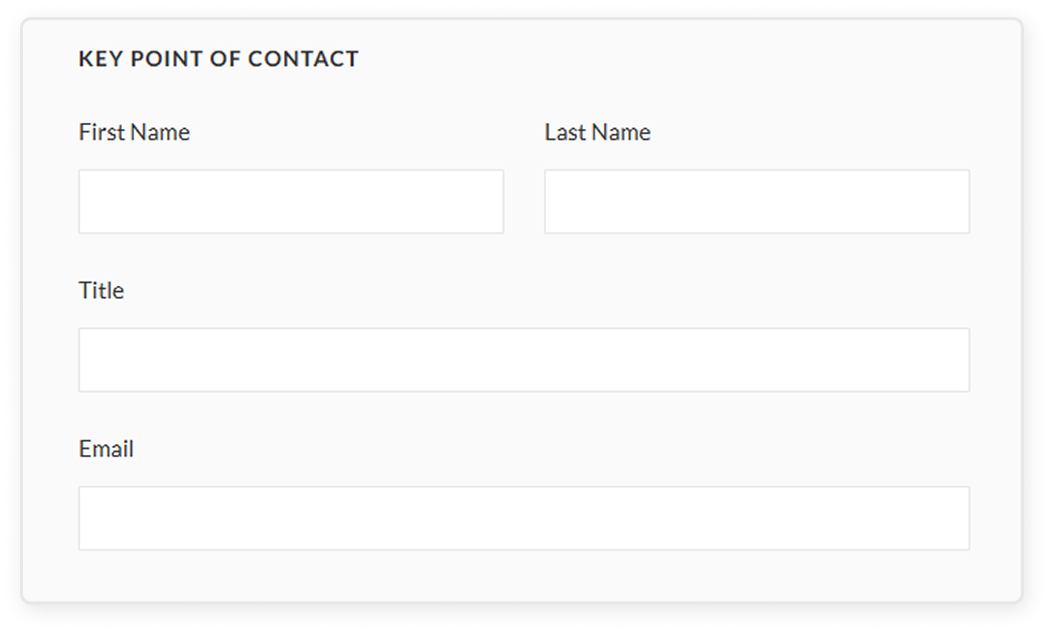
Key point of contact

  • Enter the key point of contact’s details. This should be an Organization Admin who can serve as a main point of contact for internal users, and the Mindr team.

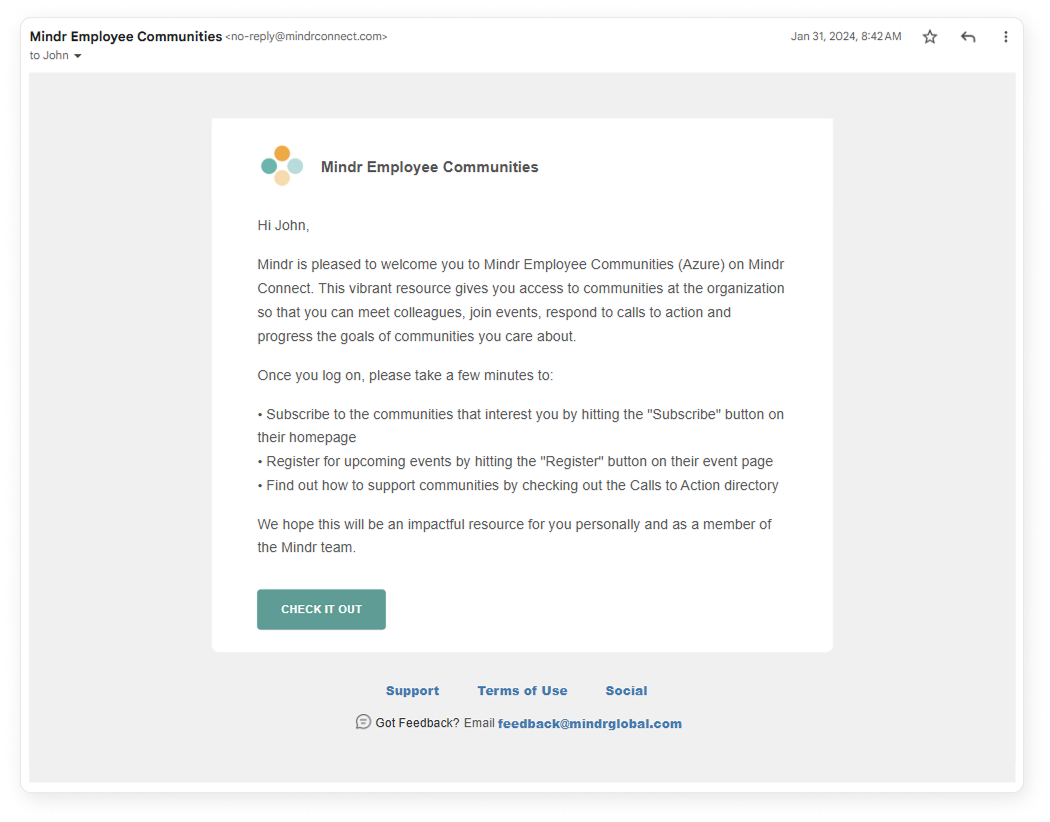
Enable a “Welcome” email

  • If enabled, this feature will send an automatic welcome email to new employees as they are added to the Mindr Connect platform, explaining how to take key actions within the tool, and providing a link to the main dashboard.