All users

Tracking your activity and badges

See your past actions, earned badges, and how to share your accomplishments

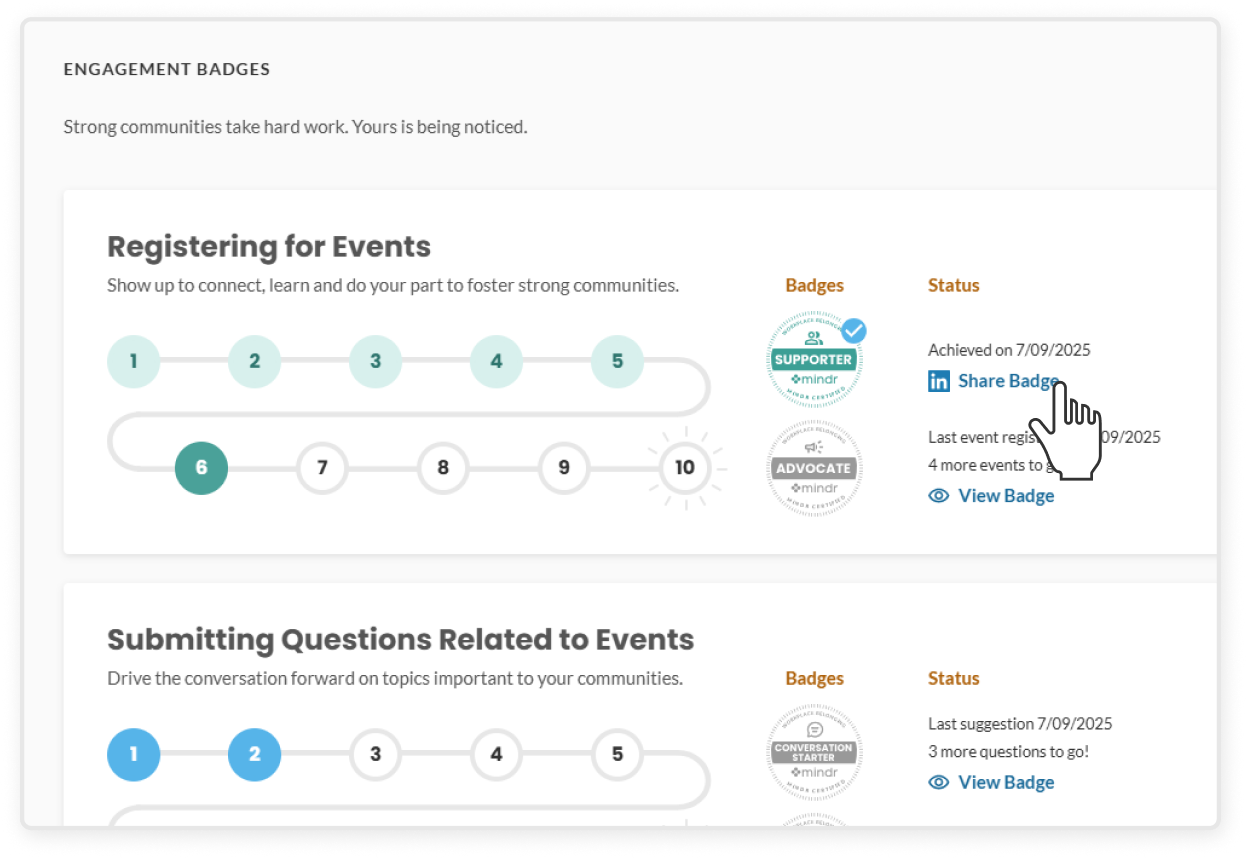
How to share badges

To share badges you've earned on LinkedIn:

  1. Click the Share Badge button next to the badge you'd like to share
  2. In the confirmation popup, click the Share button to post it to your LinkedIn profile
  3. From there, you will be directed to LinkedIn. Click Share in a post
  4. If you’d like, customize your message, then click Post to share with your network

What badges mean and how to earn them

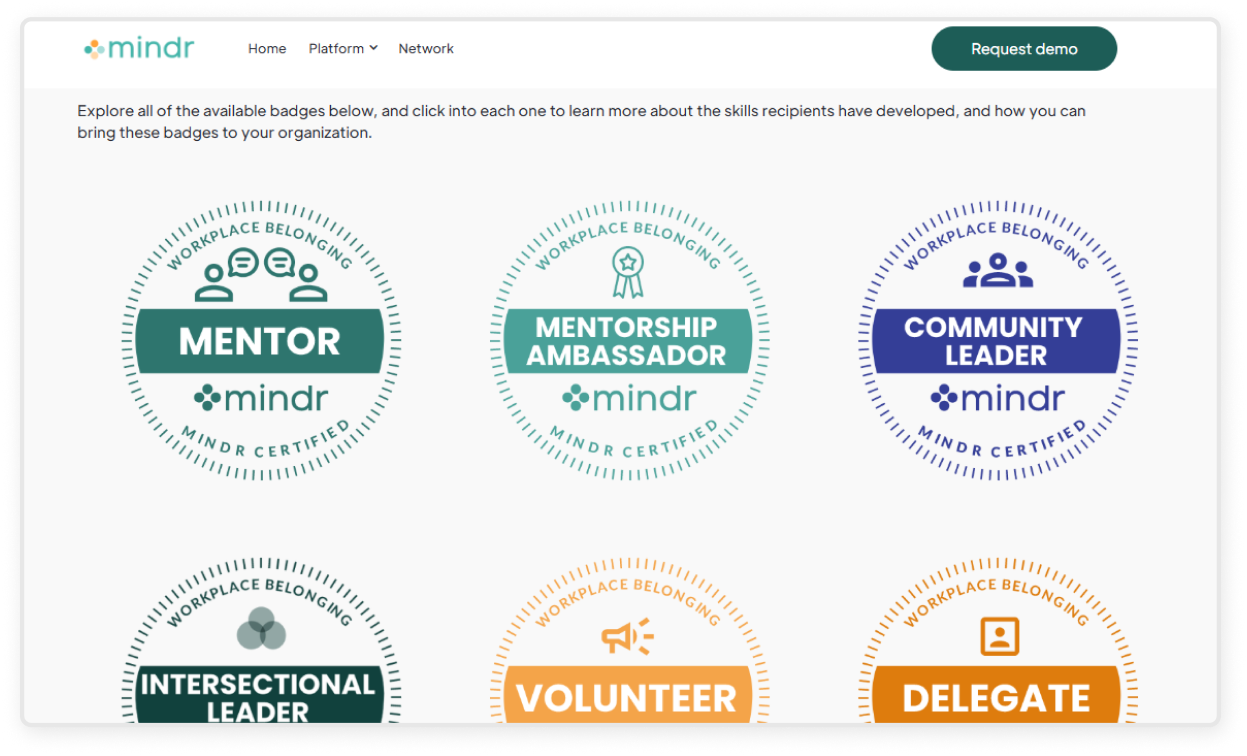
  • Badges recognize your engagement across the platform – whether you're attending events, completing calls to action, submitting questions, inviting others, or leading a community
  • Each badge has its own earning criteria, which you can view by clicking on the badge itself
  • You can learn more about each badge here

How to view badges

  • In the top right corner, click Badges next to your profile icon
  • You’ll see any badges you’ve earned, along with your progress toward the ones you haven’t earned yet
  • You can also click View Badge to open and see a larger version of each badge, even if you haven’t earned it yet
  • You can learn more about each badge here

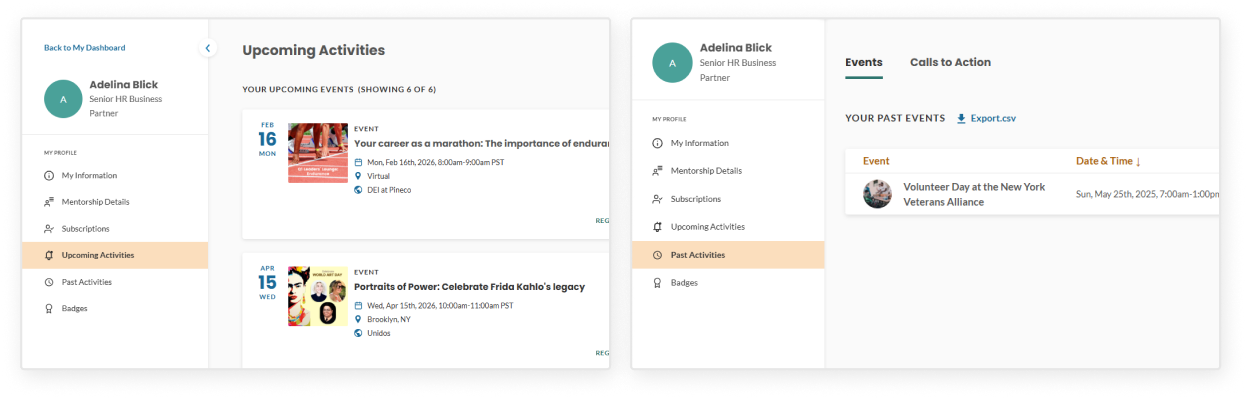
View your past and upcoming activities

  • In the top right corner, click your profile icon (or the first letter of your name if you have not uploaded a photo)
  • In the left sidebar, under the My Profile section, click Upcoming Activities to see upcoming events you have registered for
  • Click Past Activities to see events you have attended and CTAs you have completed