- In the top right corner, click your settings
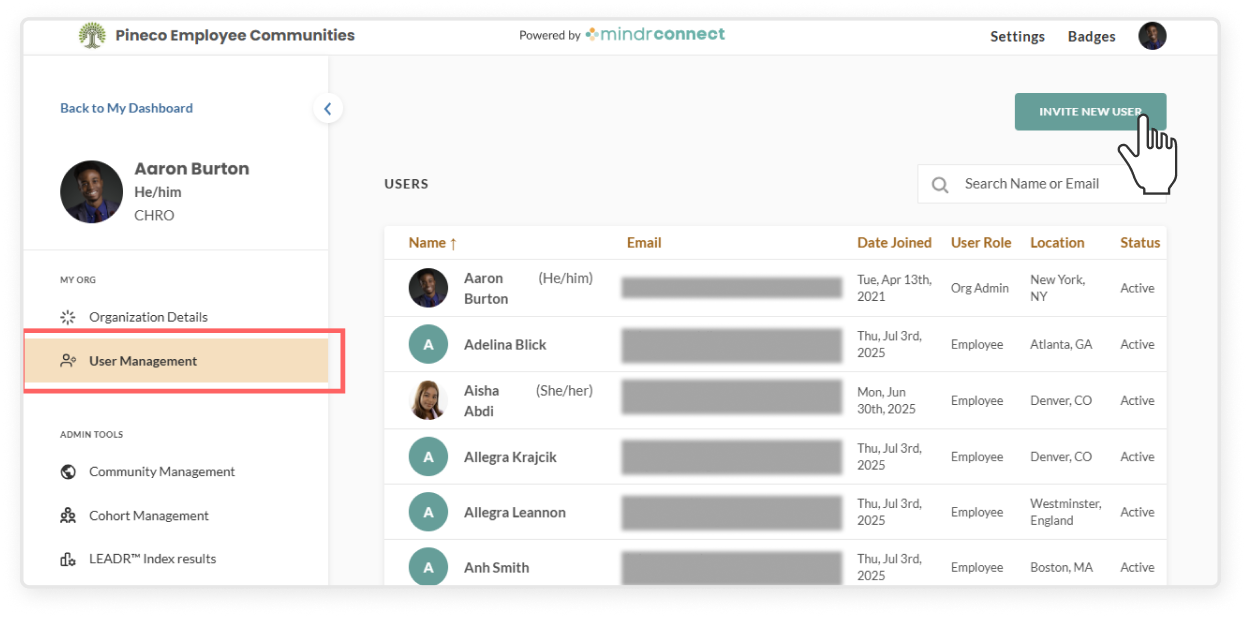
- On the left sidebar, under My Org, click the User Management
- From there, you can view each user’s details – including their name, email, date joined, user role, location, and status
- Invited means they haven’t activated their account yet
- Active means they have access to the Mindr Connect platform
- Deactivated means that they have been removed from the Mindr Connect platform (most often meaning they have left the organization)
- Use the search bar or click specific column names to easily find and sort through users
- Please note that during integration, a SCIM import will be set up to automatically add and remove users. However, a manual option is still available for adding new users:
- In the User Management, click the Invite New User button in the top right corner
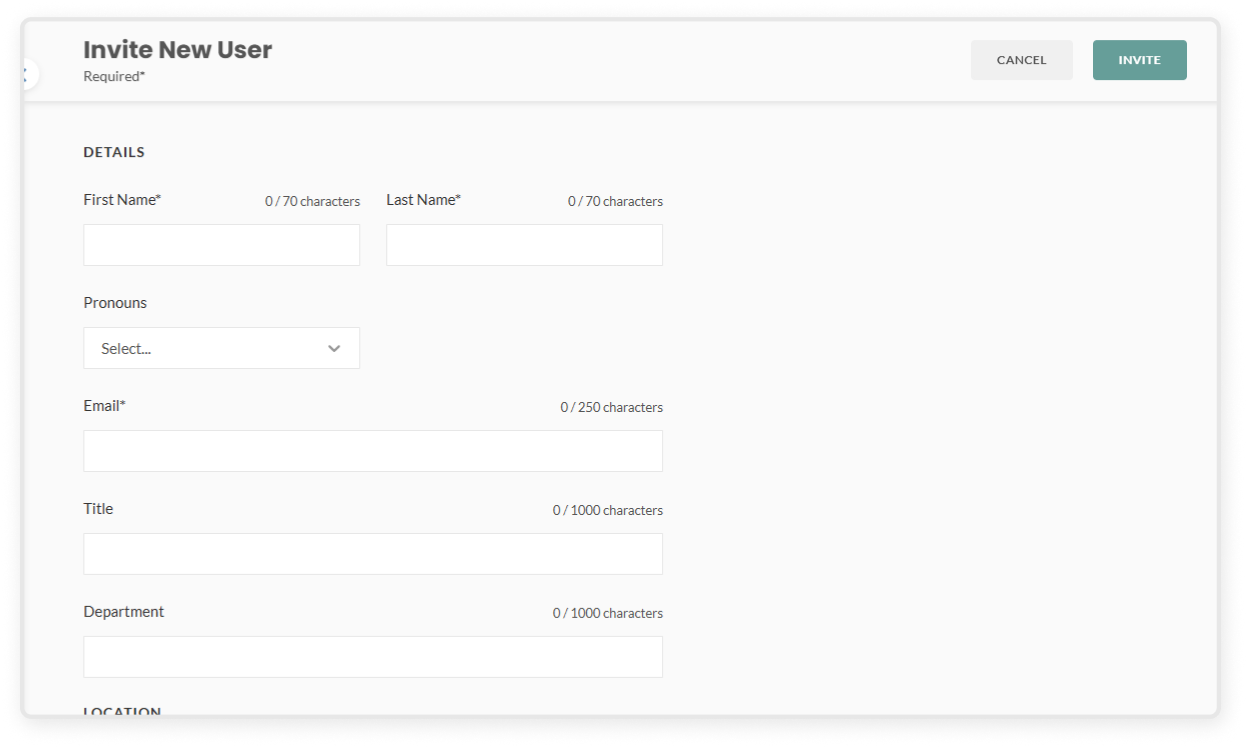
- Fill out the required fields
- First name and last name
- Pronouns
- Email
- Helpful information fields include:
- Title
- Department
- Location
- Role (Employee or Organization Admin)
- When you’re ready, click Invite to send the invitation. The user will need to accept it before they’re added to your organization on the platform.