- Log into Mindr Connect using your Single Sign On provider
- In the top right corner, click your profile picture icon (or the first letter of your name if you have not uploaded a photo)
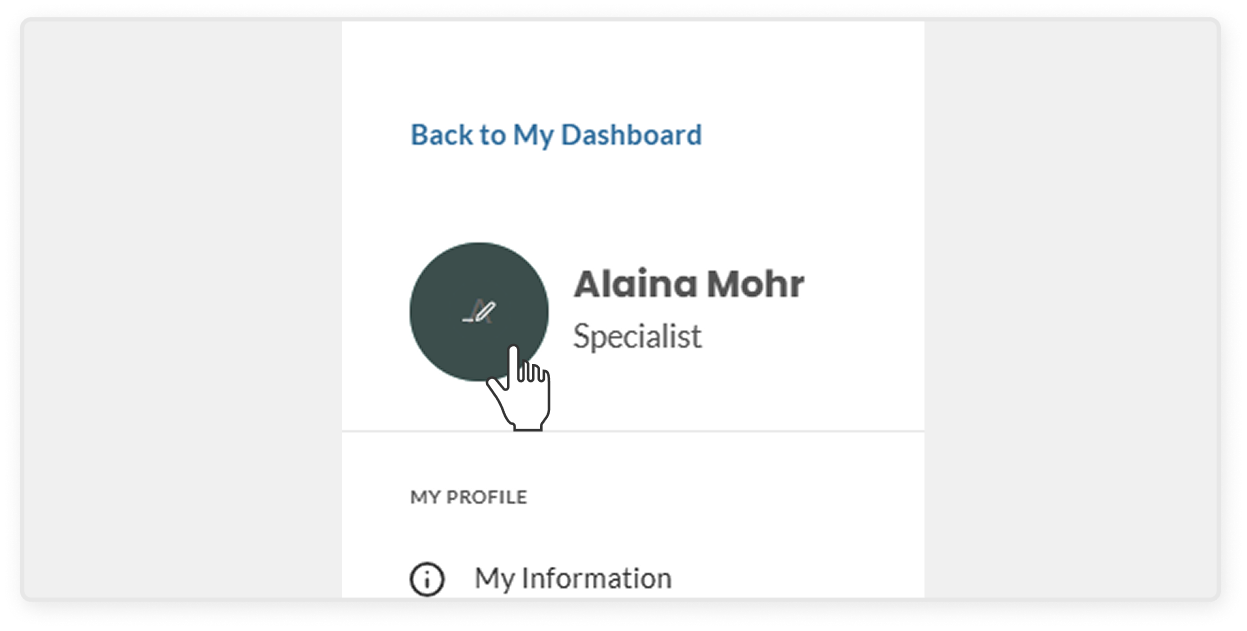
- On the left sidebar, click the large circle with your profile picture or first initial, next to your name and title
- Upload a profile photo from your computer, and click Save
- In the top right corner, click your profile picture icon (or the first letter of your name if you have not uploaded a photo)
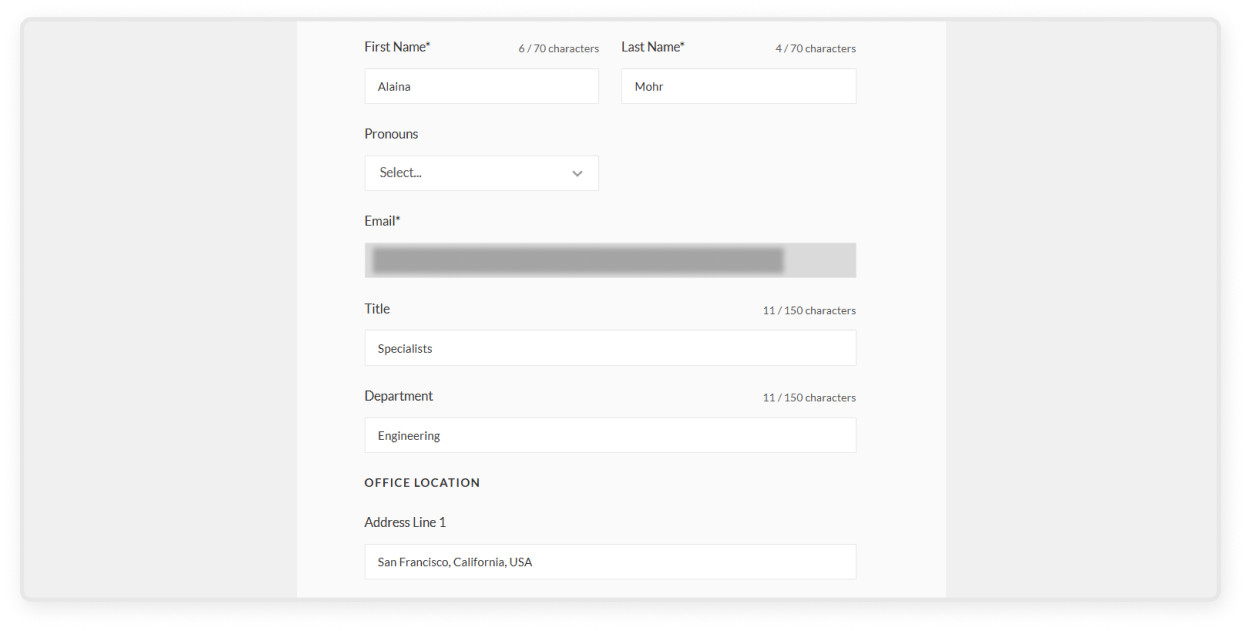
- In the left sidebar under My Profile, click My Information
- On the My Information page, you can edit your name, pronouns, title, department, and location
- Click Save
- This is also located on the My Information page
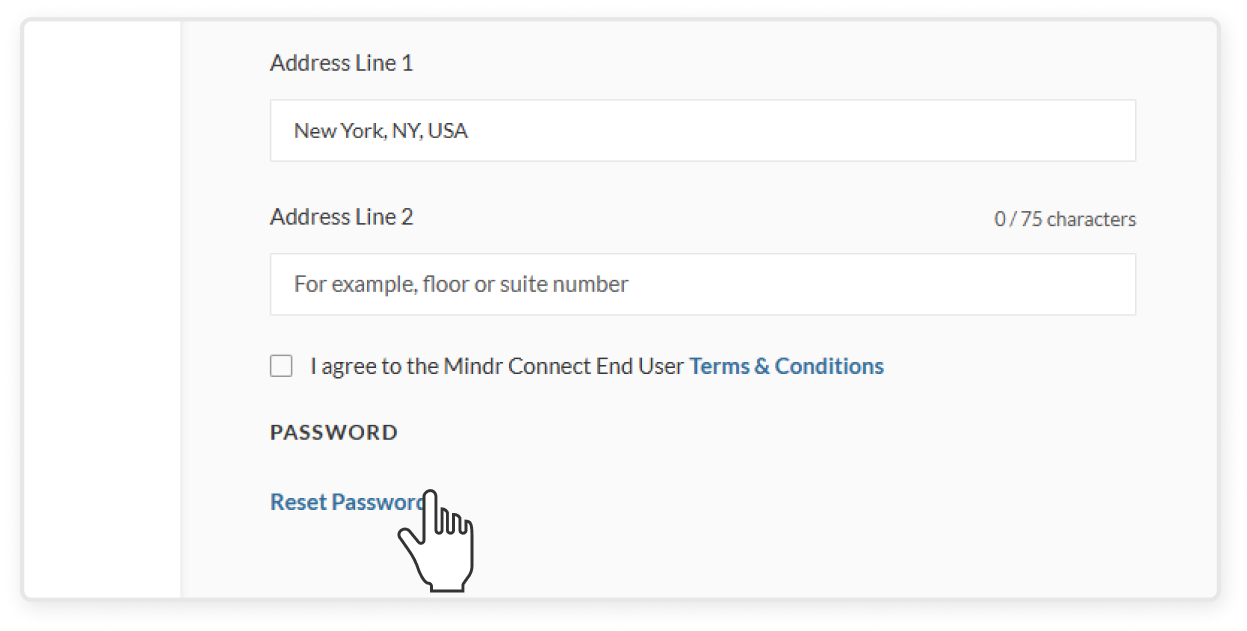
- Scroll to the Password section
- Enter your current password, new password, and confirm your new password. Your new password must meet the required criteria.
- Click Reset Password to save your changes
- NOTES: This option applies only to organizations that do not use Single Sign On (SSO). If your organization uses SSO, passwords are managed by your identity provider and cannot be changed in the platform.
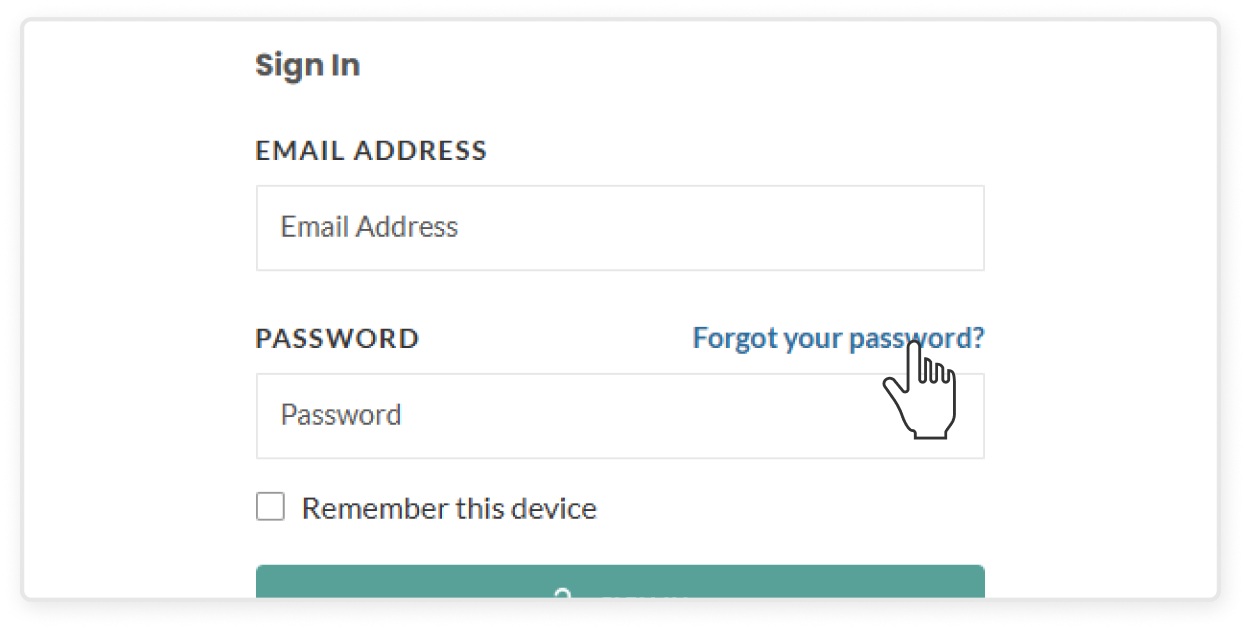
- If you are having trouble logging in, click Forgot your password on the Sign-in page
- Enter your associated work email address and click Reset Password
- Follow the instructions delivered to your email
- NOTES: This option applies only to organizations that do not use Single Sign On (SSO). If your organization uses SSO, use your identity provider’s password recovery flow or contact your organization’s administrator.
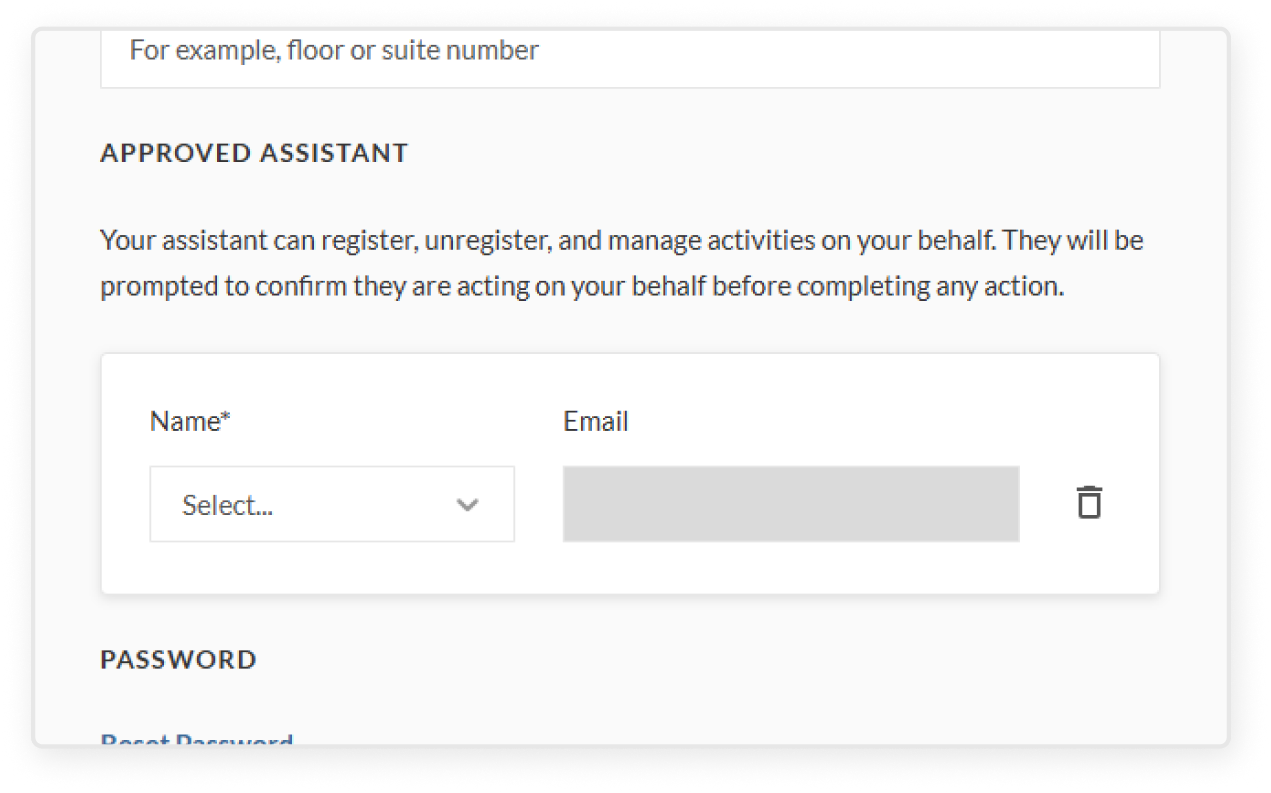
- This is also located on the My Information page
- Scroll to the Approved Assistant section
- Click "Add assistant"
- Start typing the name or email address of your approved assistant, select the correct individual, and confirm that the correct email address comes up
- Click Save
- Your approved assistant can now register, unregister, and manage activities on your behalf (they will be prompted to confirm they are acting on your behalf before completing any action)