Create, publish, and manage CTAs, including sending invites to a subset of users
Create a call to action in your community
Click Leadership Dashboard in the top right corner
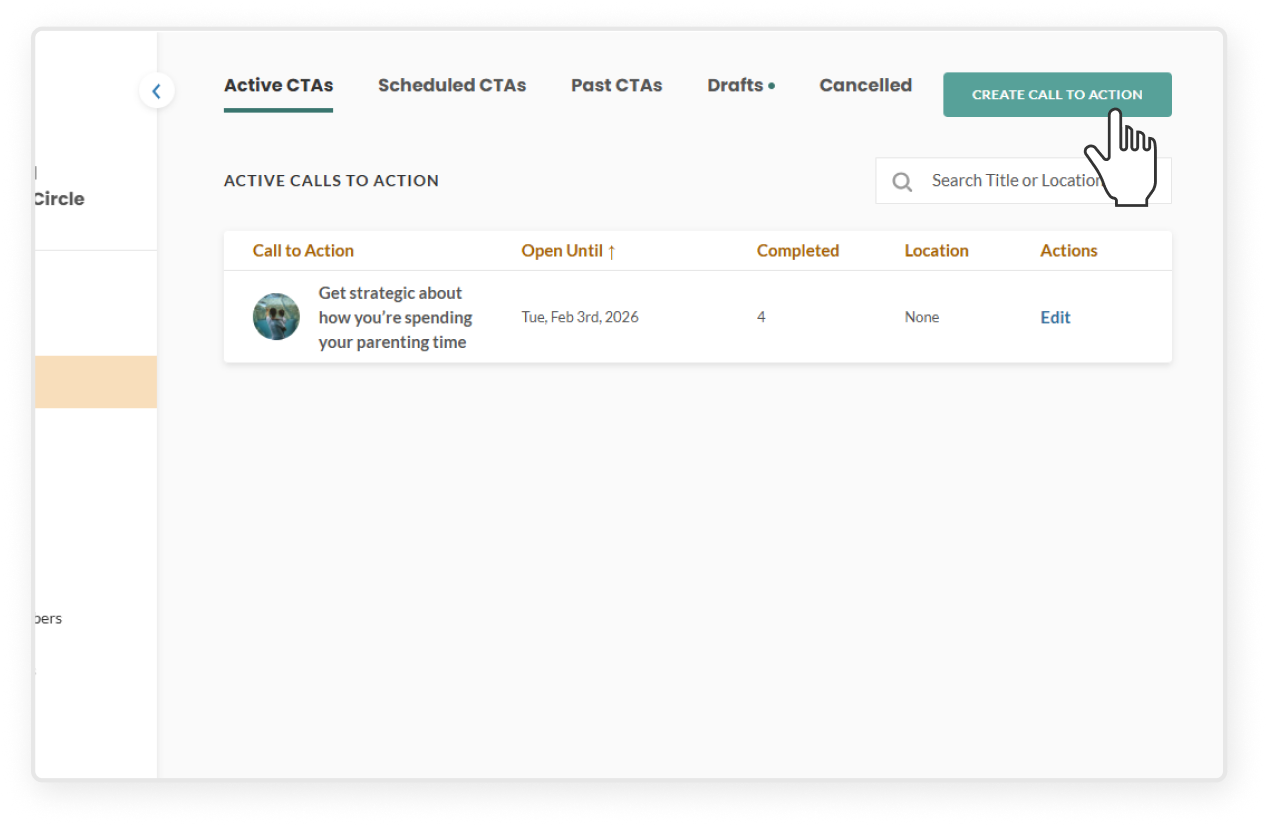
Select the community and click Calls to Action on the left sidebar
Click the green Create Call to Action button
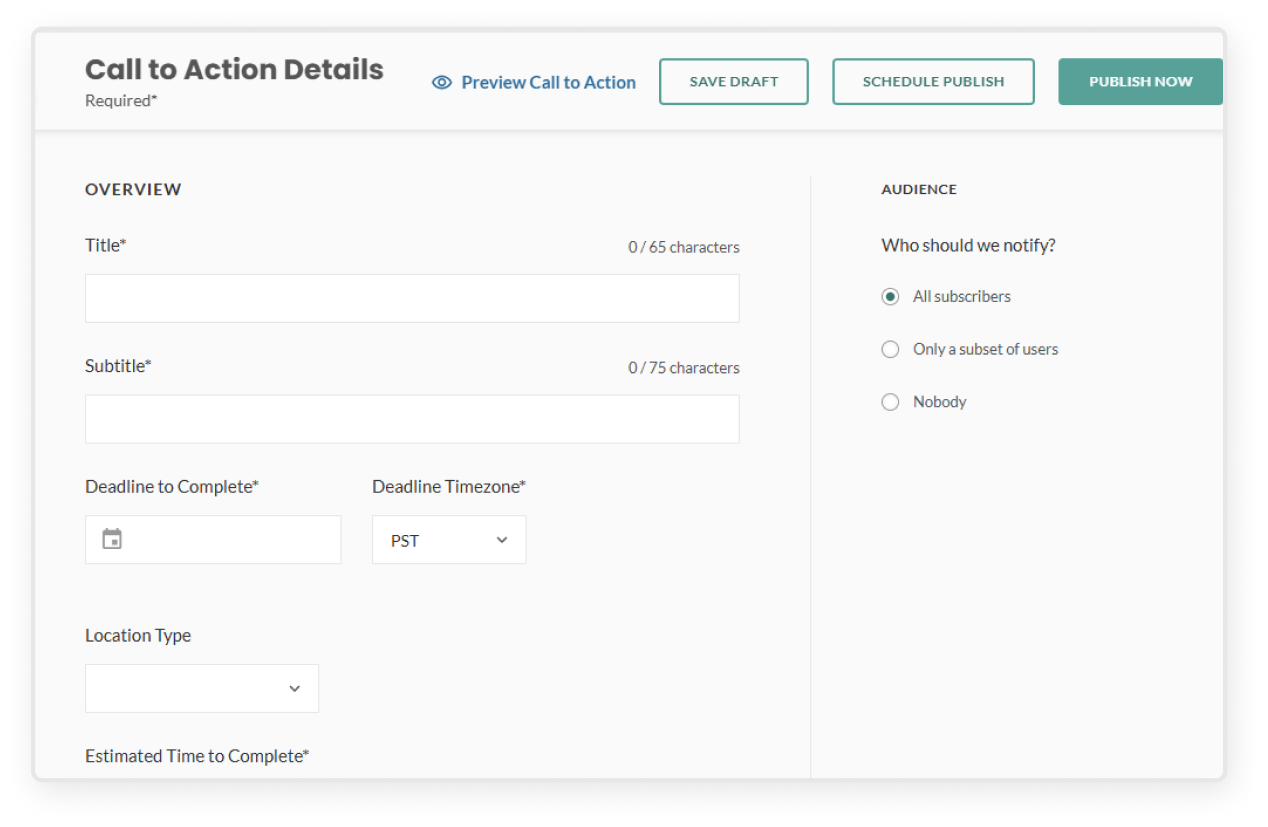
Complete the required fields
Title (name of CTA)
Subtitle (engaging sub-heading)
Deadline to complete (date the CTA will close)
Location (dial-in link, physical address, or no location)
CTA description
This will be the body of the email and main text of the CTA page, and should include all relevant information and details about the CTA. You have full rich text editing capabilities, such as creating headings, bolding, italicizing, underlining, adding bulletpoint lists, hyperlinks, etc.
Upload an image (optional: add image caption)
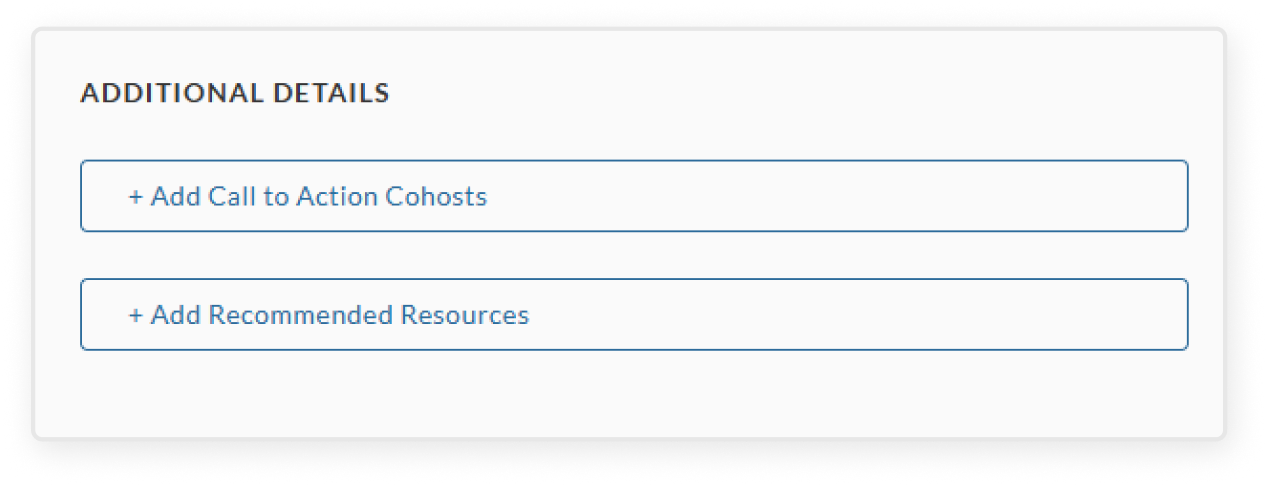
Scroll down to the Additional Details section. These fields are optional, but they help make your CTA more engaging and informative
+ Add call to action cohosts: You can add co-hosts, which will give that community’s leadership team complete edit access to the CTA, and send an invitation to that group’s subscriber base. Be sure to get permission from the relevant leadership teams before adding cohosts
+ Add recommended resources: Use this section to add documents or links you want your users to check out. You can drag and drop to reorder the resources using the icon at the front. We recommend including here all the resources linked in the description above.
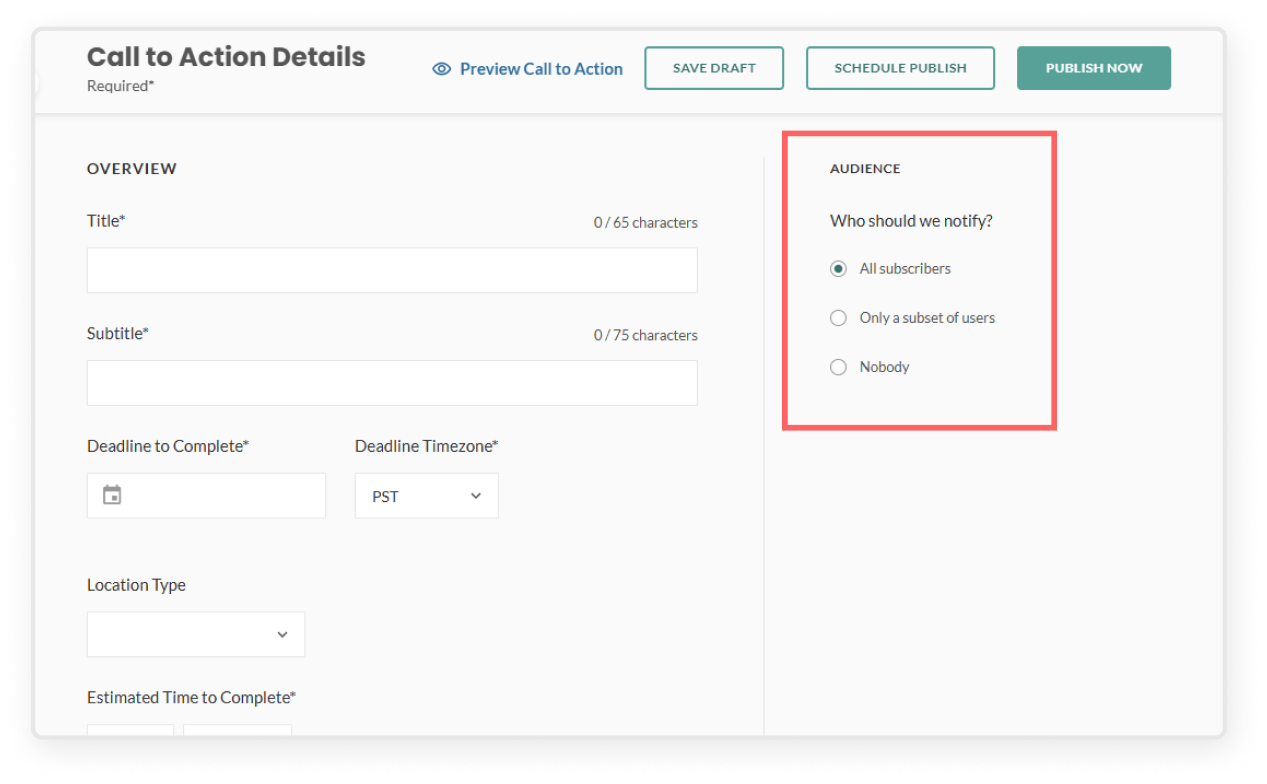
Use the Audiences section to notify your CTA audience
Select the audience you would like to notify about the event in the right sidebar
All subscribers sends an email notification to all subscribers of your community
Only a subset of users allows you to filter by location, title, department, name, or import a CSV of specific emails to receive notifications. (Learn how it works in the section: “Invite a subset of users to a CTA”)
Nobody publishes the CTA to the Mindr Connect dashboard but does not send any email notifications
Invite a subset of users to a CTA
Click the green Create CTA button
Start by filling out all required event details
Go to the Audience section in the right sidebar, select Only a subset of users
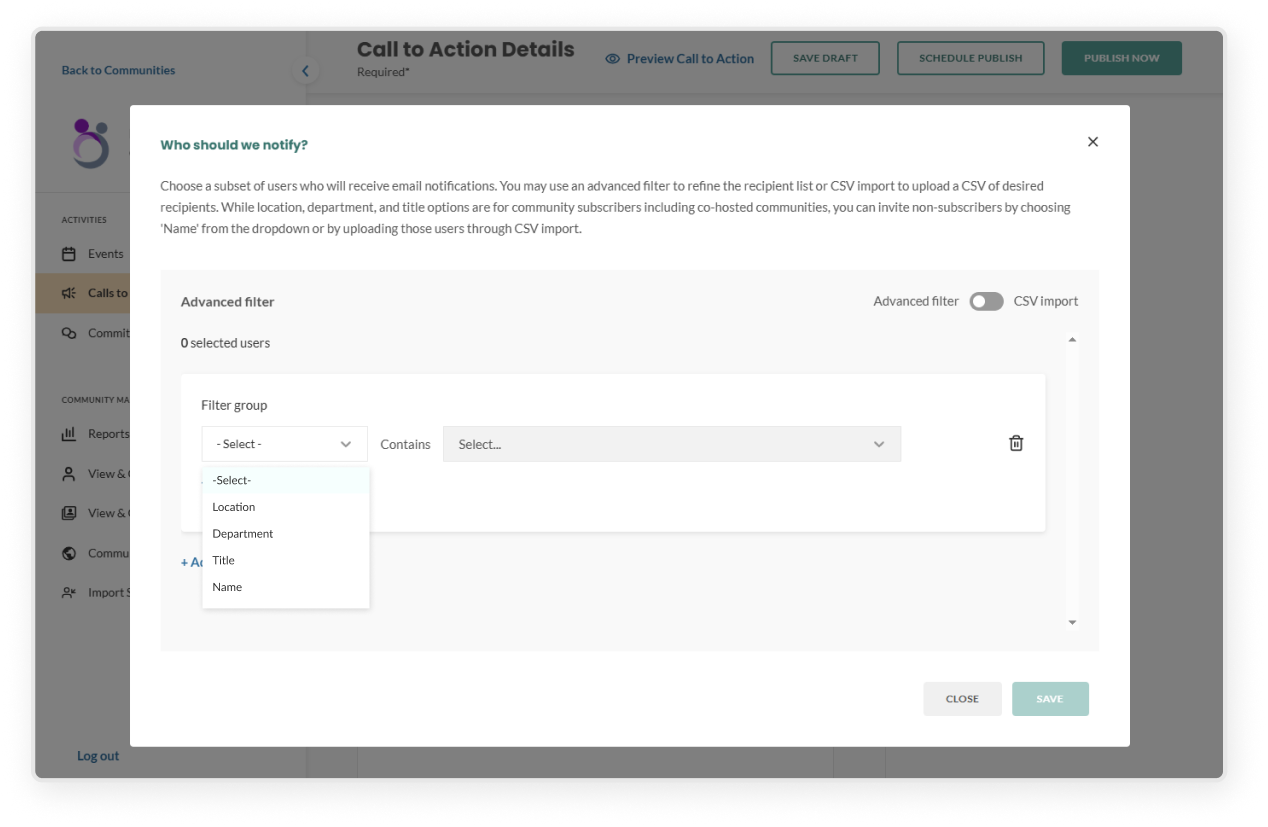
Use advanced filters
Select a filter group (e.g. location, title, department, or name)
In the contains field, enter specific values. You can multi-select items in this field
Click Add filter item to include more options in the same group – for example, if you want users who are in both Location: New York and Department: Engineering
Click Add filter group to create a separate set of filters – for example, if you want to invite users who are either in Location: New York or in Department: Engineering
Click Save to review the list of users who will be notified, then click Confirm
To make changes before publishing, click Edit next to Only a subset of users
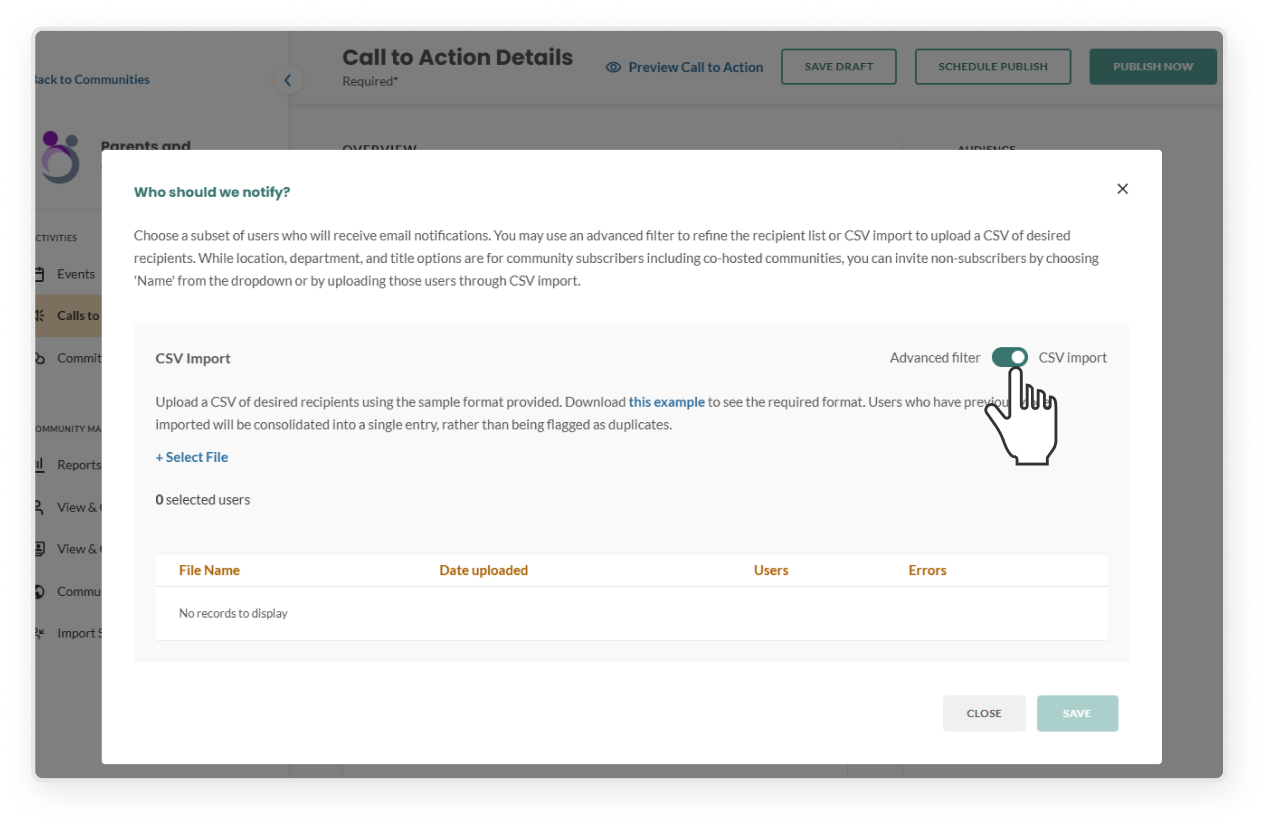
Import recipients via CSV
Toggle to the CSV import
Download the sample template and follow the required format
Upload your file to see how many users were successfully added and if there were any errors
Click the error link to download and view reasons for failed uploads
To remove the file, click the "X" next to the uploaded file and confirm in the modal
Upload a corrected file and click Save
On the confirmation modal, click Confirm – this will replace any filters you set using Advanced Filters
After publishing:
Selected users will receive the notification immediately
Click theCTA you want to open the CTA overview page
In the Communication Log on the right, click the specific log entry to see who was notified
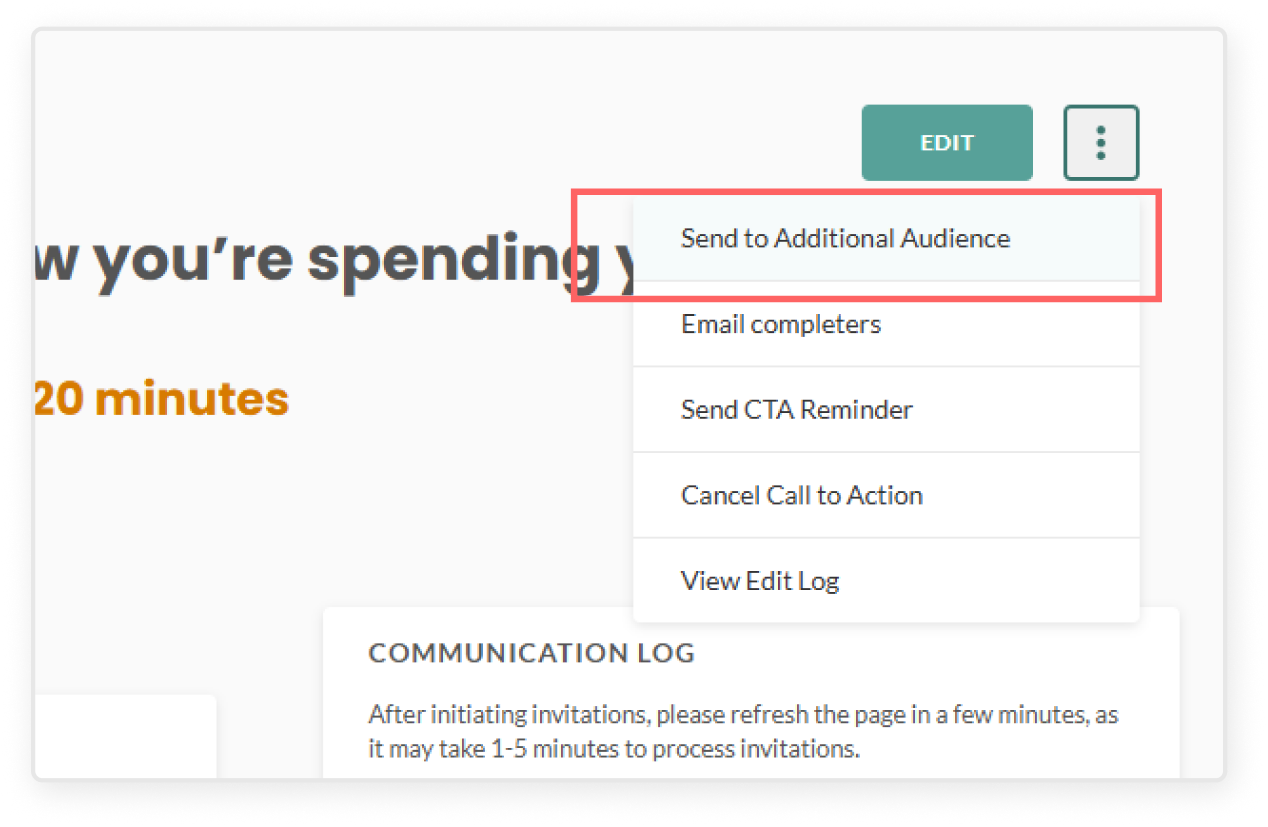
🔔 Note: You won’t be able to edit this audience after publishing, but you can notify another group by going to the three-dot kebab menu and selecting Send to Additional Audience
Save or publish a CTA
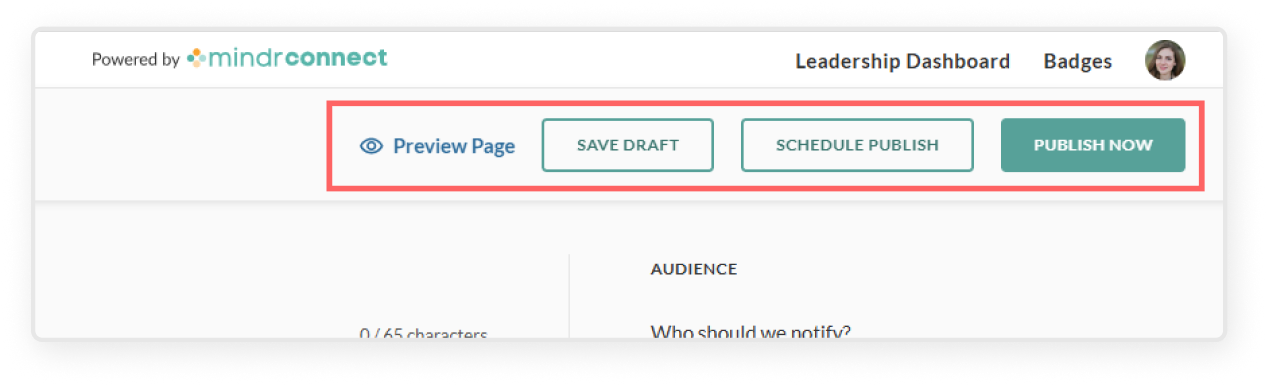
Click Preview Page to see how the CTA will look when published
Make sure you have added all the required fields before publishing
Once you're happy with it, save or publish:
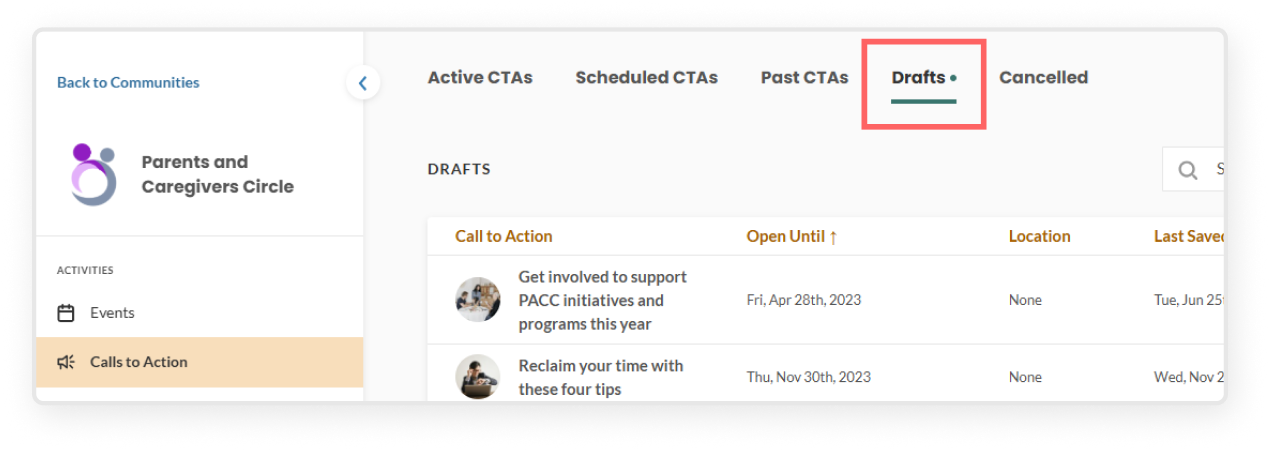
Save as Draft will save your work to the "drafts" tab, which other leaders of the community can access and collaborate on
Schedule Publish allows you to set a specific time and date for the content to be published
Publish Now publishes the content immediately, and sends email notifications to the selected audience
Edit draft CTA
Click Leadership Dashboard in the top right corner
Select your employee community
In the left sidebar, click Calls to Action
In the top menu bar, click the Drafts tab
Select the specific CTA, and edit fields as needed
Important: be aware that once you hit Publish all subscribers of your community will receive an email notification alerting them that there is a new CTA to view. Ensure that your CTA is totally complete before publishing.
Click the green Publish button, read the prompt reminding you that a notification will be sent, click the second Publish button
Return to the Active Calls to Action tab to view the live CTA
Edit scheduled CTA
Click Leadership Dashboard in the top right corner
Select your community
In the left sidebar, click Calls to Action
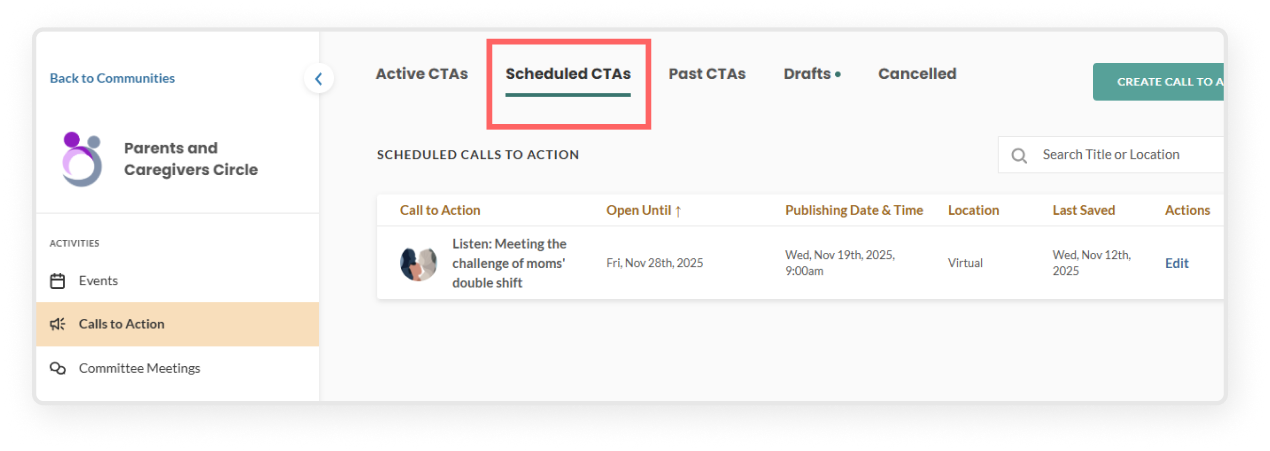
At the top, go to the Scheduled CTAs tab
Select the Call to Action you want to edit
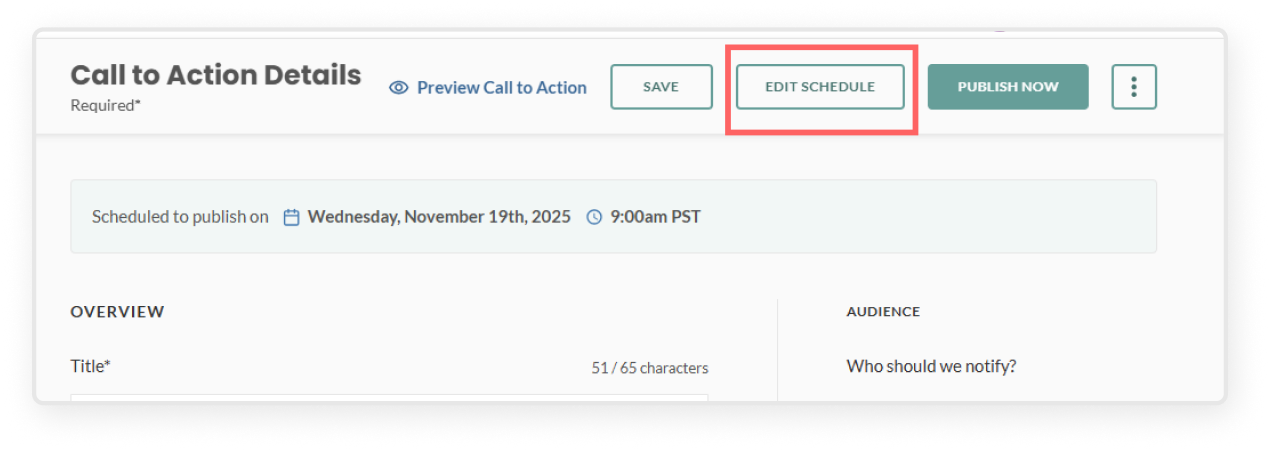
Click Edit Schedule in the blue banner
In the schedule modal, you can:
Update the date or time it is scheduled to publish
Remove the scheduled publish
You can also click Publish Now if you want it published immediately
Click Save to confirm your changes
Email CTA completers and invite users
Select theCTA you want to send emails regarding
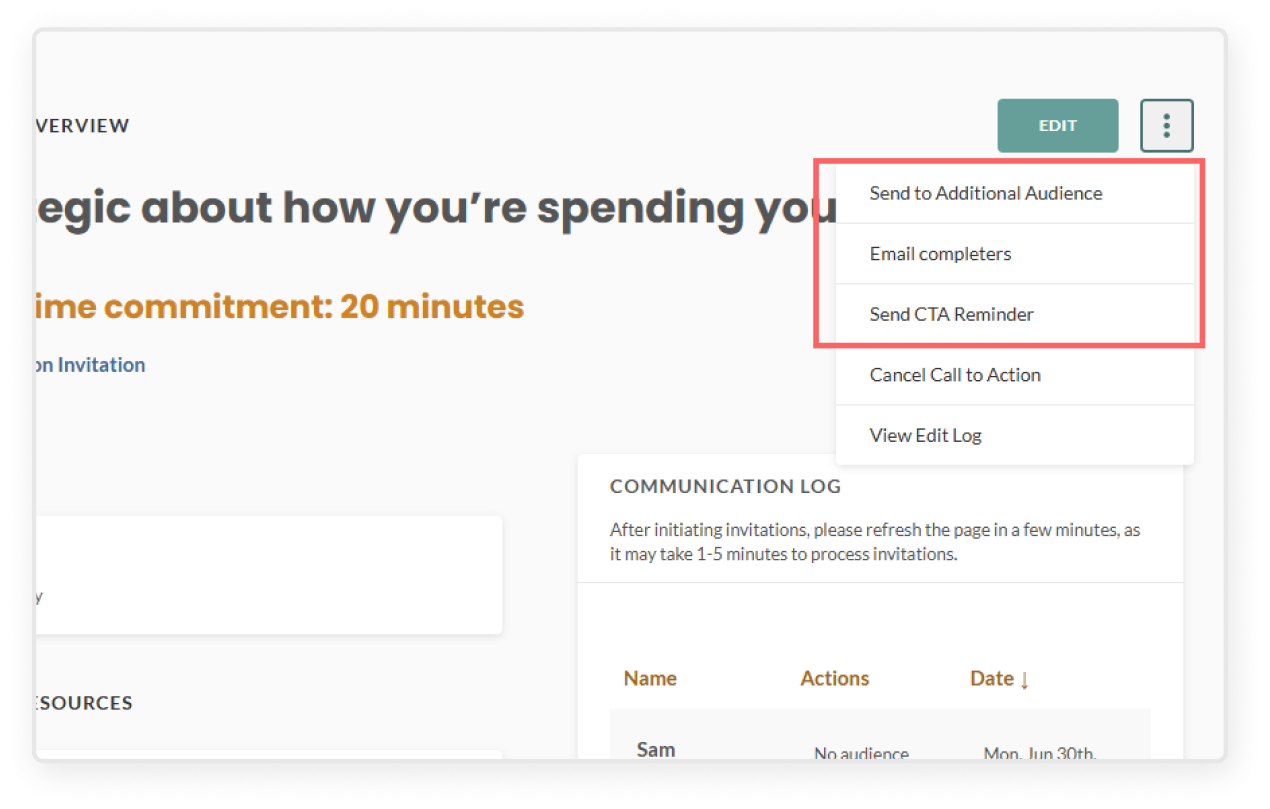
From the CTA overview page, select the three-dot kebab menu in the top-right corner to open the menu:
Send to Additional Audience – Target specific locations, job titles, or departments to invite additional users to your CTA
Email completers – Send a message to those who have already completed the CTA
Send CTA reminder – Re-send the invitation to all subscribers who have not yet completed the call to action
Manage published CTA
To edit a CTA, you can either:
Click the Edit button directly from the CTA table
Or click into the CTA to open the CTA overview page, then select the green Edit button in the top-right corner
To cancel and remove the CTA:
Select theCTA you want to edit
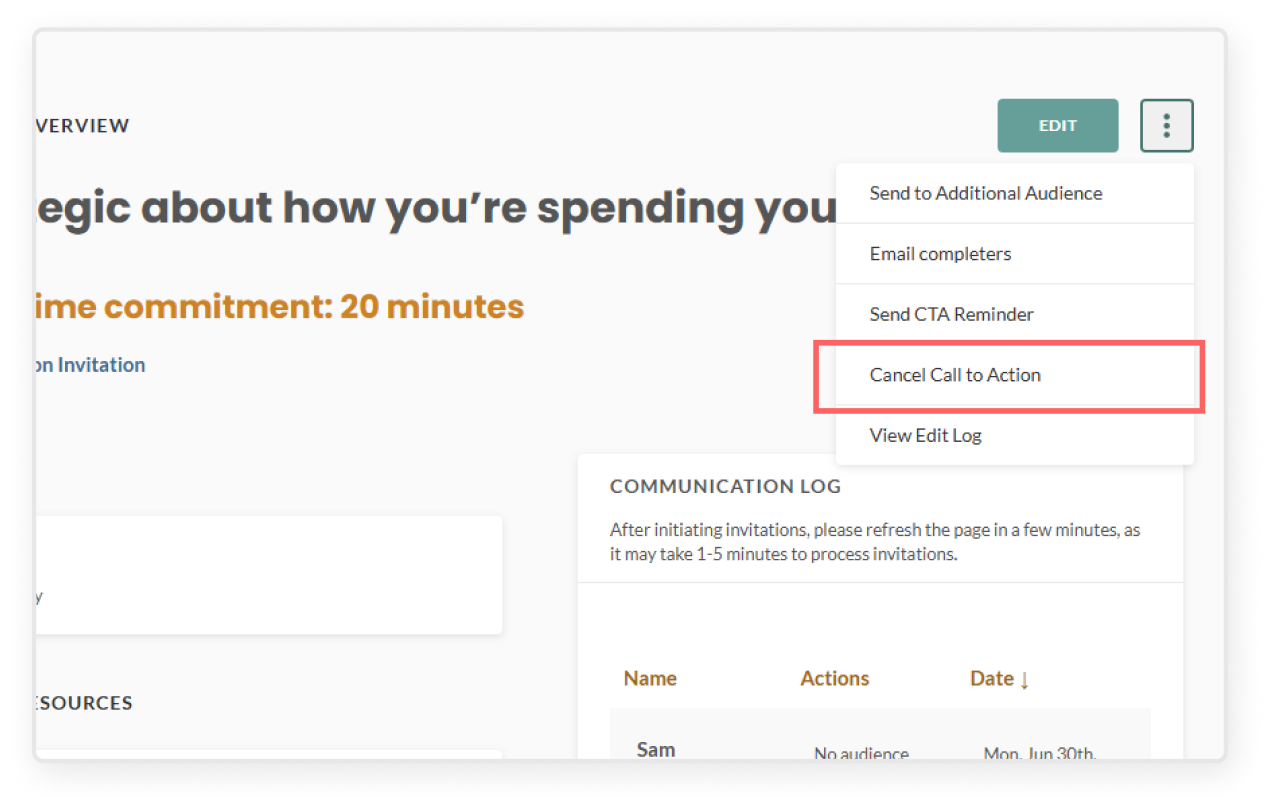
From the CTA overview page, select the three-dot kebab menu in the top right corner to open the menu
Cancel Call to Action – This will cancel the CTA entirely, remove it from the Mindr Connect dashboard, and send a cancellation email to all subscribers who completed the CTA. If a user attempts to view the CTA from their email, they will receive an error message.
To remove a CTA without notification:
Select the CTA you want to edit
Change the date to today’s date. The content will expire at the end of the day and no users will be notified of the change.