Committee meetings allow leaders to schedule planning meetings, add agendas, record minutes, and assign follow up items.
Create a committee meeting
Click Leadership Dashboard in the top right corner
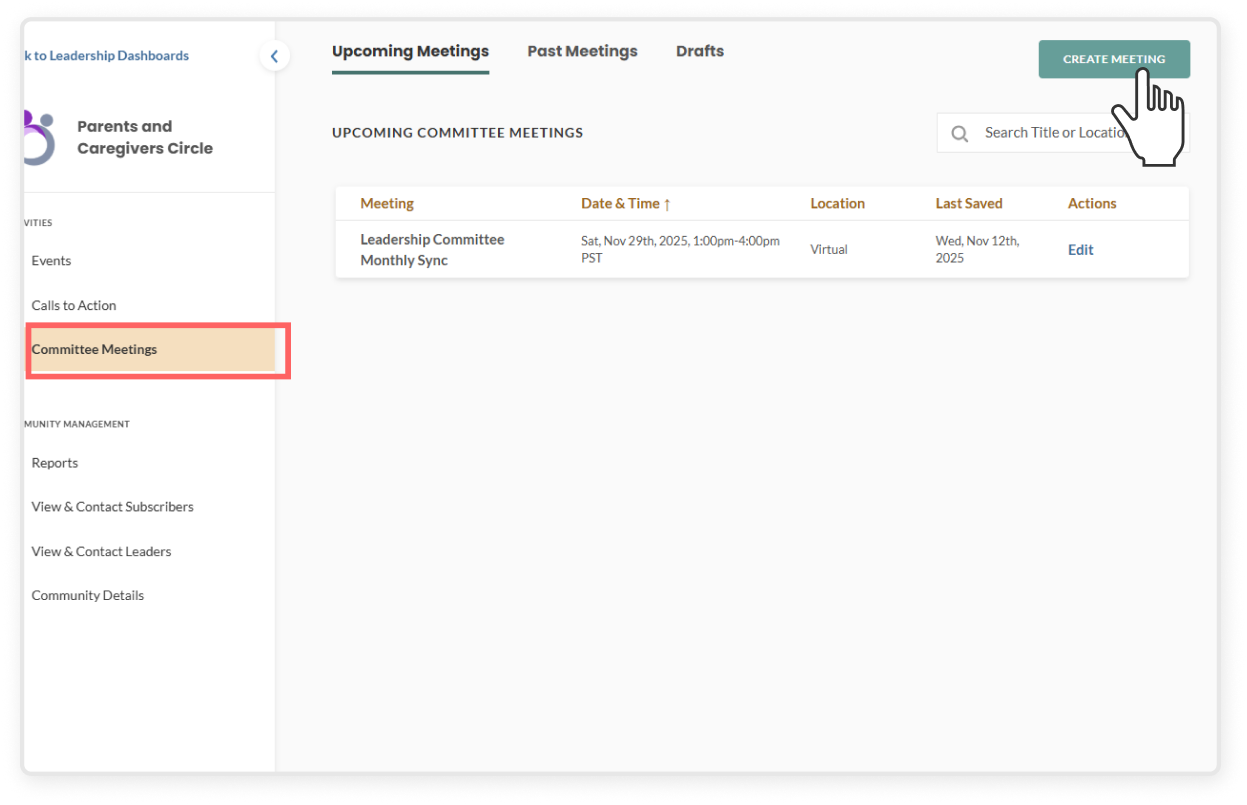
Select the community and click Committee Meetings on the left sidebar
Click the green Create Meeting button
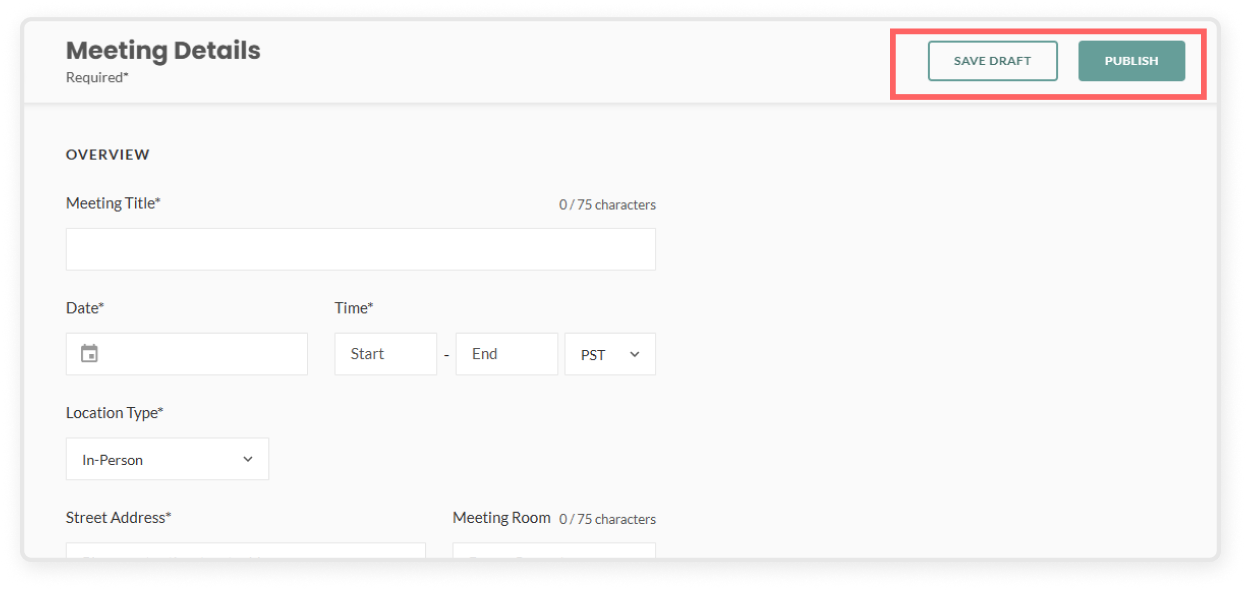
Complete all required fields:
Title (e.g. Q1 Planning Meeting)
Date and time
Location (dial-in link or in-person address)
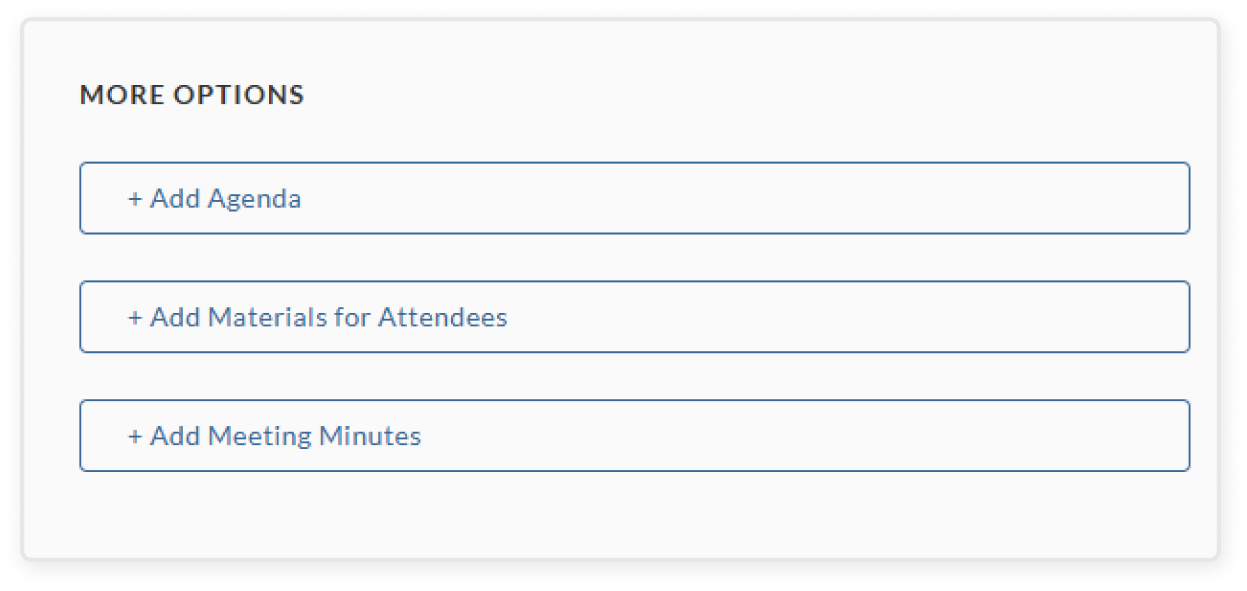
Scroll down to the More Options section:
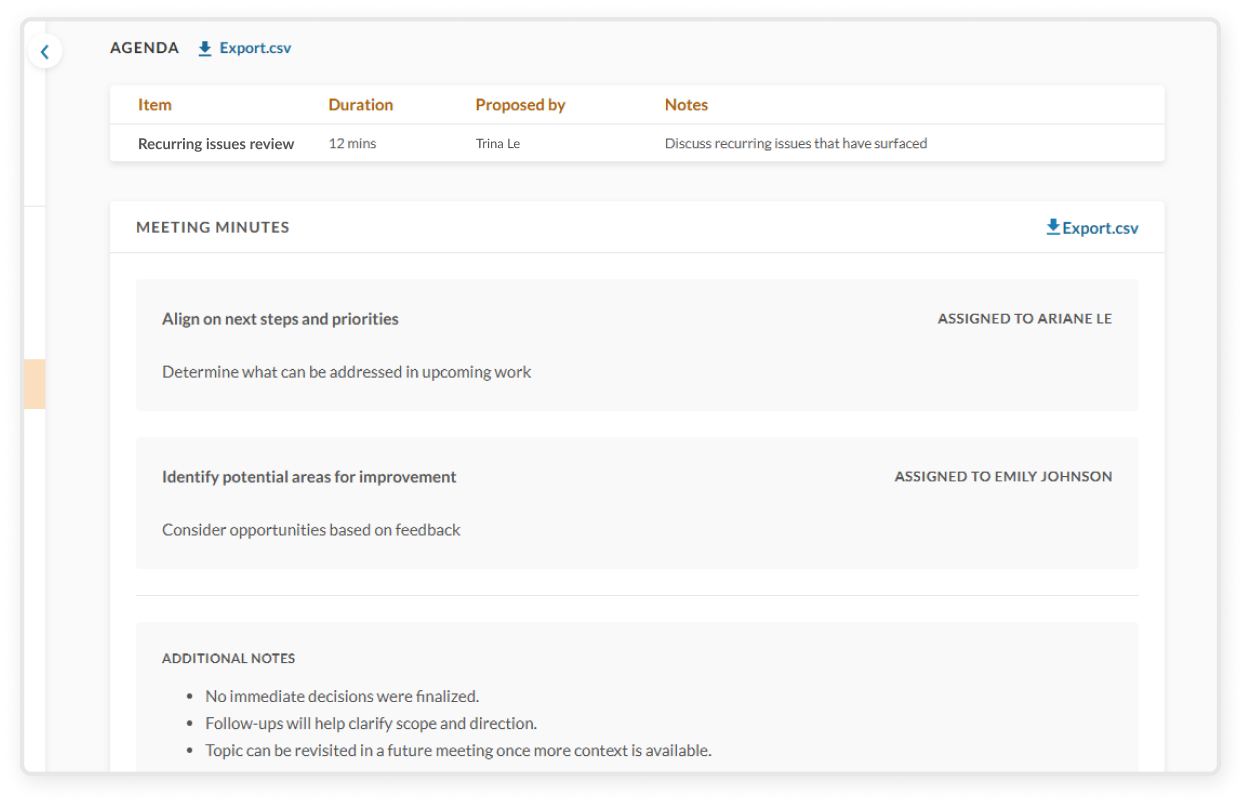
+ Add agenda: You can add agenda items along with estimated duration and notes. Each item will be attributed to the user who added it.
+ Add materials for attendees: Use this section to add documents or links you want attendees to check out. You can drag and drop to reorder the materials using the icon at the front.
+ Add meeting minutes: Before, during, and after the meeting, notes and minutes can be added in this section. Follow-up items can be assigned to specific leaders by selecting their name from the drop down menu
Click Save Draft or Publish to add the Committee Meeting to all leaders’ calendars
All community leaders will have the ability to continue to edit and add to the meeting, whether it is a draft, published, or a past meeting
View past committee meeting notes
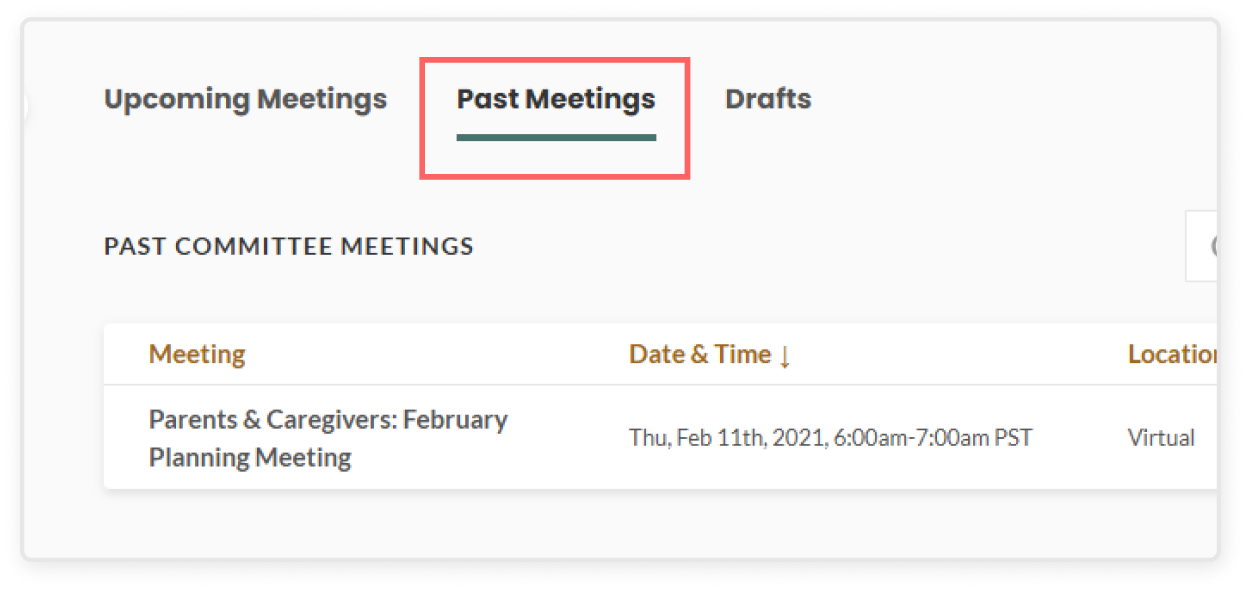
Click Committee Meetings on the left sidebar and then select the Past Meetings tab
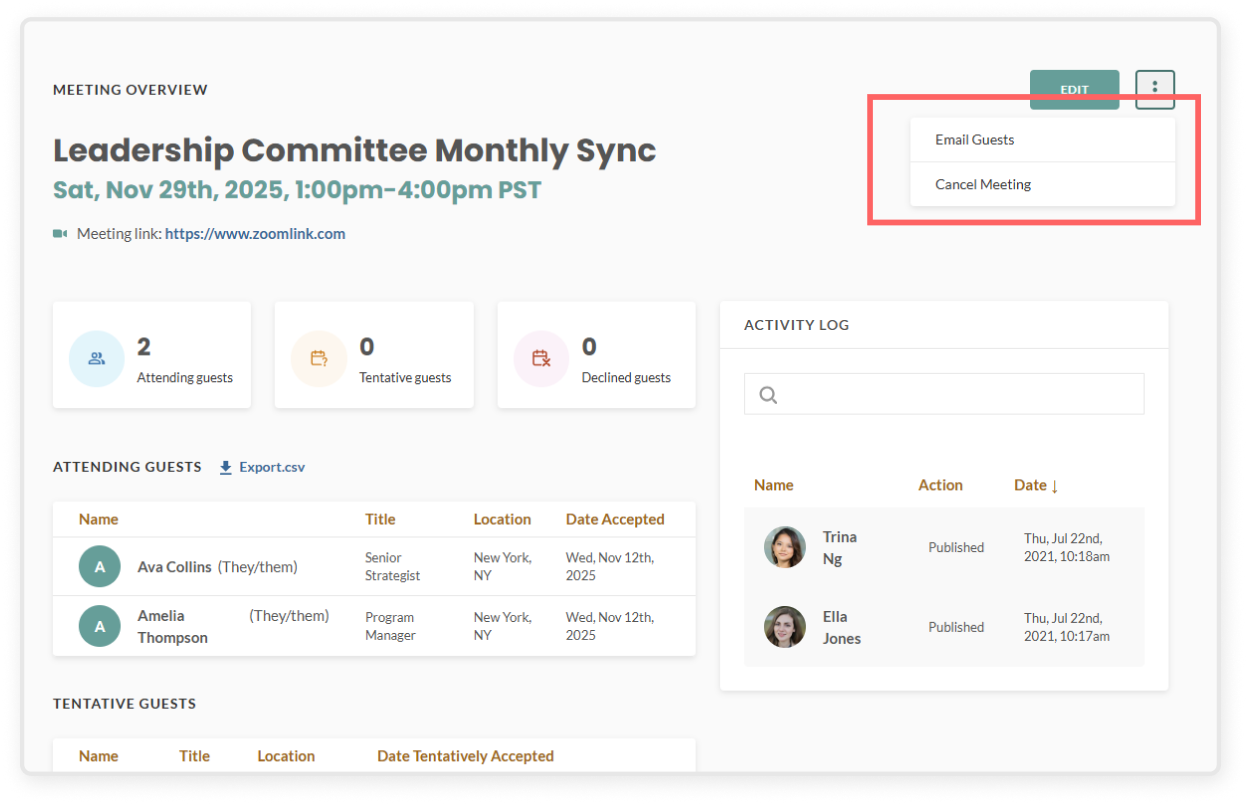
Click into a specific committee meeting to view the meeting overview dashboard
Review the agenda, materials, and meeting minutes
Manage committee meetings
Navigate to the three-dot kebab menu on the meeting overview page. From there, you can select:
Email Guests – Send a message to the leaders who are attending the meeting
Cancel Meeting – This will cancel the event entirely and remove it from leaders’ dashboards and calendars, and will send a cancellation email to all invited leaders